Your theme lives in the avatar menu, top-right of Pace: pick Light, Dark or Device, and the change applies instantly. There's nothing to save and no page reload.
Dark mode is available on every plan, to every member of every workspace.
Change your theme
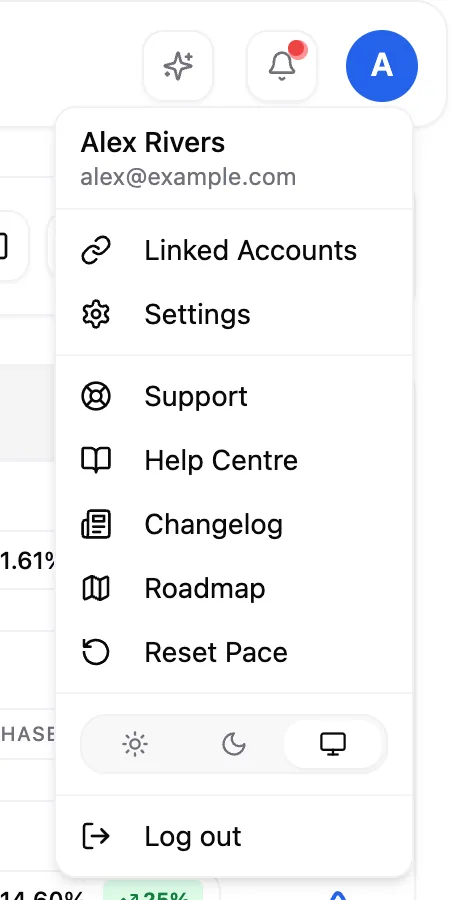
- Click your avatar in the top-right corner of any Pace page.
- Find the three-icon rail near the bottom of the menu, just above Log out.
- Click the sun for Light, the moon for Dark, or the monitor for Device.
The menu stays open when you switch, so you can compare the options and settle on one without reopening it.
What each option does
- Light — Pace stays light regardless of your computer's setting.
- Dark — Pace stays dark regardless of your computer's setting.
- Device — Pace matches your computer's own light or dark setting and follows it when it changes, including on an automatic day/night schedule.
Device is the default, so Pace matches your operating system from your first visit until you choose otherwise.
Note: Your choice is saved in the browser you made it in, not to your account. Sign in from a second browser or a different computer and you'll pick your theme again there.
What follows your theme
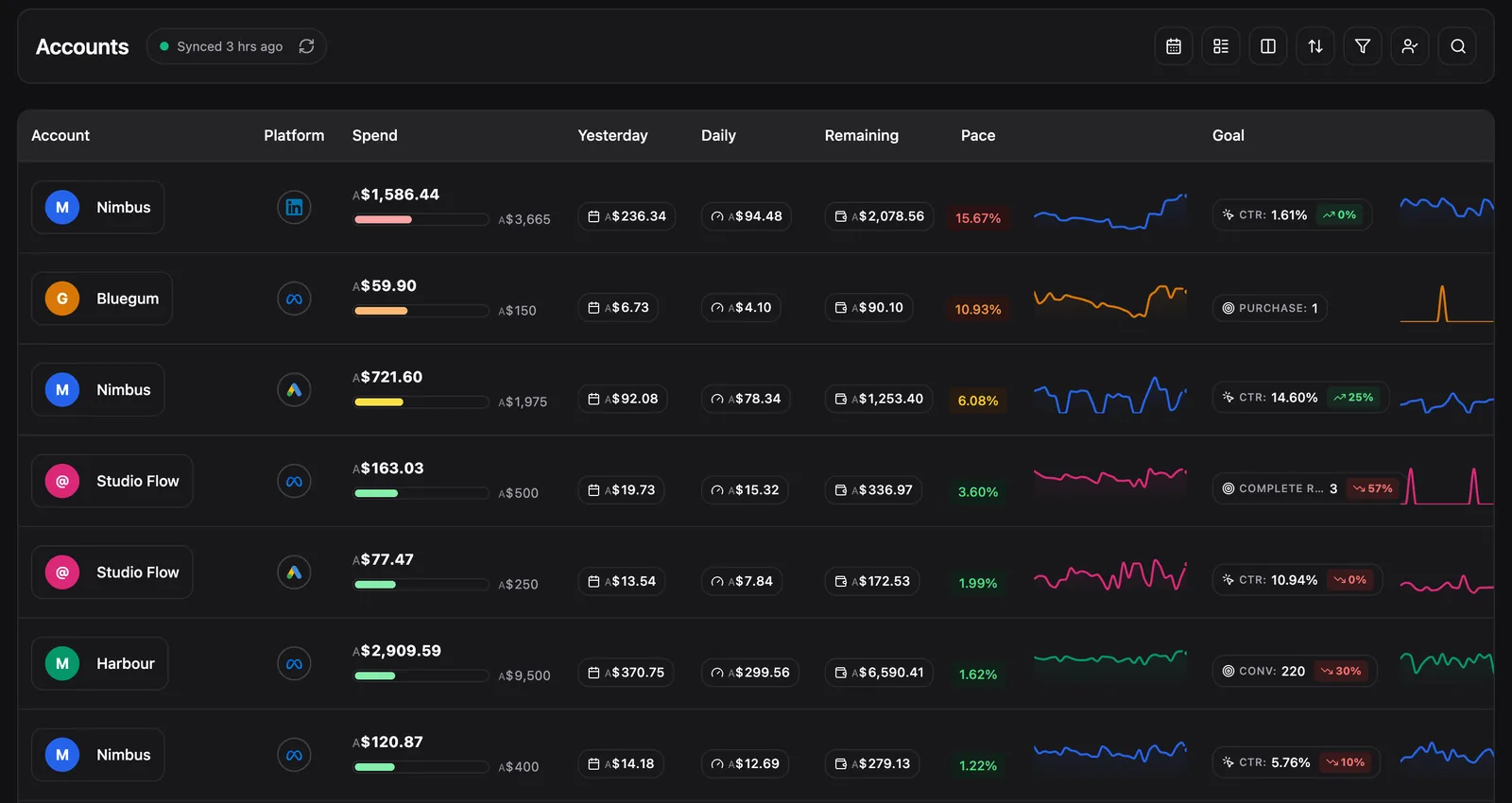
Your theme covers the whole dashboard (accounts, campaigns, groups, changes, settings, reports and Dot), plus the public Changelog, Roadmap and Help Centre.
What always stays light
Some surfaces are deliberately fixed to light, because they're the ones other people see:
- The sign-in and onboarding screens
- Emails Pace sends
- PDF reports
- The marketing site
That means anything forwarded to a client, printed, or opened by a new teammate looks the same no matter which theme you use.
View Pace in another language
Pace works with your browser's built-in page translation, on every page and in either theme. Turn on translation the way you would on any other website. There's nothing to enable in Pace, and the app stays fully interactive while translated, so you can still navigate and save.
If the theme doesn't change
Check that you're not on a screen that's fixed to light, such as sign-in or onboarding. Every screen covered in the Pace dashboard tour follows the theme you picked.