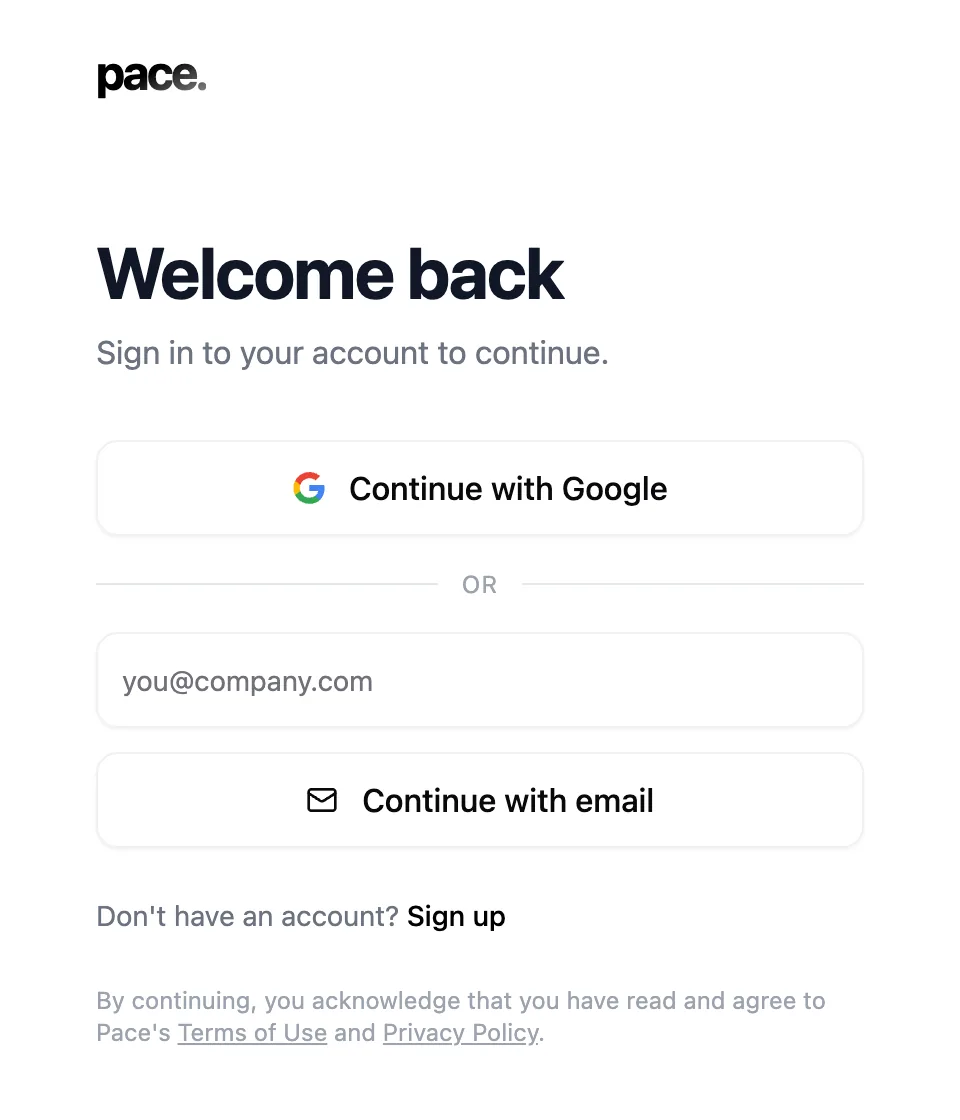
Pace has two ways in: Continue with Google, or a six-digit code sent to your email. Neither uses a password, and Pace never asks you to create one.
You'll need: the email address your Pace account or your invitation is attached to.
Sign in with Google
- Go to the login page and select Continue with Google.
- Choose the Google account you use for Pace and approve the prompt.
Pace picks up your Google name and profile photo on every sign-in, so a photo you change in Google appears here within minutes.
Sign in with an email code
- On the login page, type your address into the email field and select Continue with email.
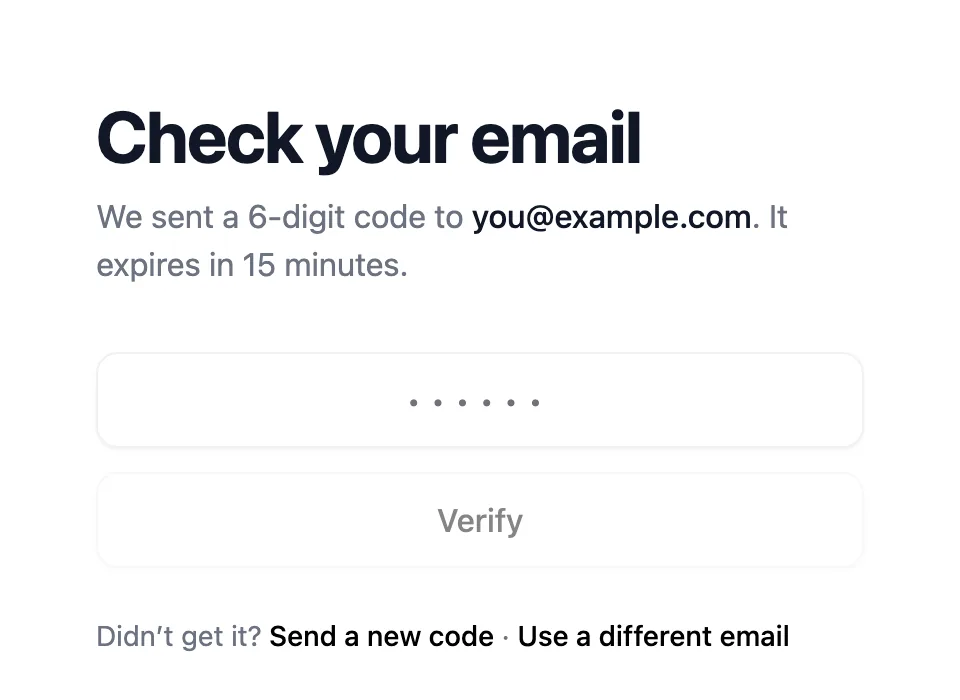
- Open the email from Pace and note the six-digit code. It expires after 15 minutes.
- Type the code on the Check your email screen and select Verify.
If nothing arrives, check your spam folder, then select Send a new code. There's a short cooldown between sends, and only the newest code works. Use a different email takes you back to the form if you mistyped your address.
Note: A Google sign-in and an email code for the same address are the same Pace account, with the same workspace behind them. Team invitations accept either method.
Switch to a different account
Open the avatar menu in the header and select Log out, then sign in with the other address. If you're already signed in and open the login page, Pace skips the form and drops you straight into your dashboard.
Set your name and photo
Your name and avatar are what teammates see in the members list, change history, and notebook mentions. Open Settings, stay on the General tab, and use the Profile card:
- Name saves itself a moment after you stop typing, and a small Saved note confirms it. There's no save button.
- Hover your avatar for a pencil to upload a photo (PNG, JPEG, WebP or GIF, up to 5 MB), or the small × to remove the current one.
- With no photo set, you get a coloured circle with the first letter of your email, used everywhere you appear in Pace.
Anything you set yourself stays put: the Google sync won't overwrite it. Your email is shown but locked, so contact [email protected] if you need your account moved to a new address.
If sign-in doesn't work
A rejected code has either expired or been replaced, so request a fresh one and use the most recent email. Ask for too many codes in a row and Pace pauses new ones for 15 minutes. A cancelled Google prompt returns you to the form with a plain-language message and a retry.
Next
Read first 15 minutes with Pace to connect an ad account and see your first pacing signal.