Your Pace Home page starts with what needs you today, then shows how every account is pacing (whether its spend is on track to hit budget by the end of the month) and what changed recently.
Home is the first item in the top navigation. There's no left sidebar. A bar across the top holds the pace. logo, then Home, Portfolios (grouped views of related accounts), Accounts and Changes. On the right sit Findings (Pace's AI insights and recommendations) and the notifications Bell, side by side with a count of anything new, then your account avatar. Either one opens the same panel, with a tab for each.
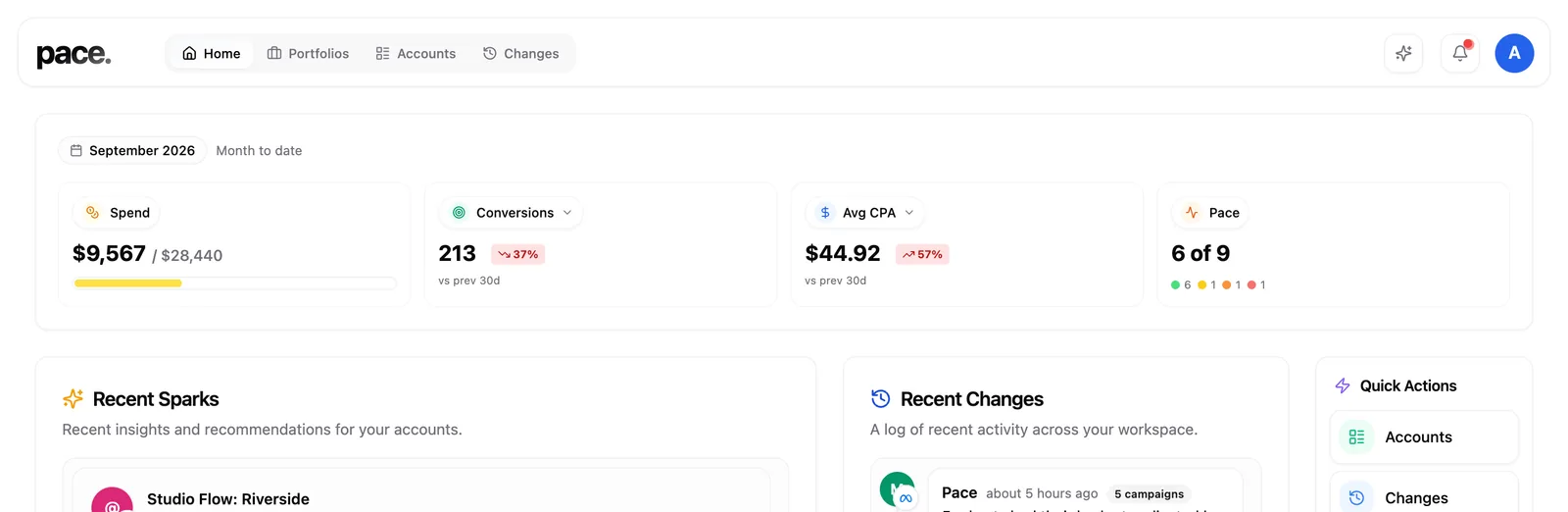
The strip across the top
Four figures for the month so far:
- Spend: total spend across every account against total budget. The tick on the bar marks where spend should be by today. Hover the bar to see that figure and which accounts it leaves out because they have no budget.
- Pace: how many accounts with a budget are on track, shown as "3 of 5", with a bar split by colour. Green means an account is within 5% of where its spend should be by now, amber means 5% to 15% off, and red means more than 15% off. The pace pill on each account uses the same colours.
- Two metrics you choose: use the dropdown on each to pick Conversions, Clicks, Impressions, CTR, Average CPA, Average CPC, ROAS or Conversion value. Each shows its change over the last 30 days against the 30 before.
What needs you
The next row answers "what should I look at first?"
- Needs attention lists up to five things that need a person, ranked by how much money is at stake this month. That covers accounts off pace, accounts below their daily floor, ad platform logins or data connections that have dropped, and critical alerts from the last three days that are still open. Hover a row to see what to do, then click to go there. Already dealt with something? Hover the row and click × to dismiss it. It disappears for everyone in your workspace and comes back after seven days, or sooner if it gets worse: the money at stake grows by more than 10%, or a warning turns critical.
- What Pace did this week counts the budget moves Pace made in the last seven days and across how many accounts. A bar for each day splits that day's moves into raises and cuts. Hover a bar for the day's numbers, and read the week's totals in the legend. Once Pace has measured how those moves turned out, a bar shows how many helped, how many it's too early to tell and how many didn't help.
- Recently viewed lists the last four accounts and portfolios you opened in this workspace.
The Accounts card
The Accounts card lists every account with a budget, furthest from its target first. Use All, Off, Drifting and On pace to filter it. Each row shows spend against today's target, the budget remaining this month, what it needs per day from here, yesterday's spend, a 30-day spend trend line, the account's Goal badge and the pace pill, the same figures and pills as the Accounts page. The Synced chip tells you how fresh the numbers are.
Further down
- Findings: what Dot spotted in your accounts. Click a card to open the finding. The recommendation sits in its own box under the diagnosis. See how Findings work.
- Alerts: performance alerts, pacing warnings and @mentions meant for you. Click one to jump to the account it's about. The same alerts sit behind the Bell.
- Recent changes: who changed what, when and on which account, in Pace or straight in the ad platform. Click an entry to open it on the Changes page.
- Performance: a blended chart across all your accounts, comparing the last 7 full days with the 7 before, which show as dashed lines. Click a metric box to hide or show its line. See how to read the performance chart.
- Industry news: 12 advertising headlines, refreshed twice a day and labelled Platform, Legal or Industry.
Hover a finding or an alert to mute it from its three-dot menu.
Note: Findings is available on Pro plans and above. On Basic, the card shows an upgrade prompt instead.
The Accounts page
The full account list lives on the Accounts page, not on Home. Toggle between a sortable table and a grid of cards, and choose which of the Spend, Pace and Goal columns you want on screen.
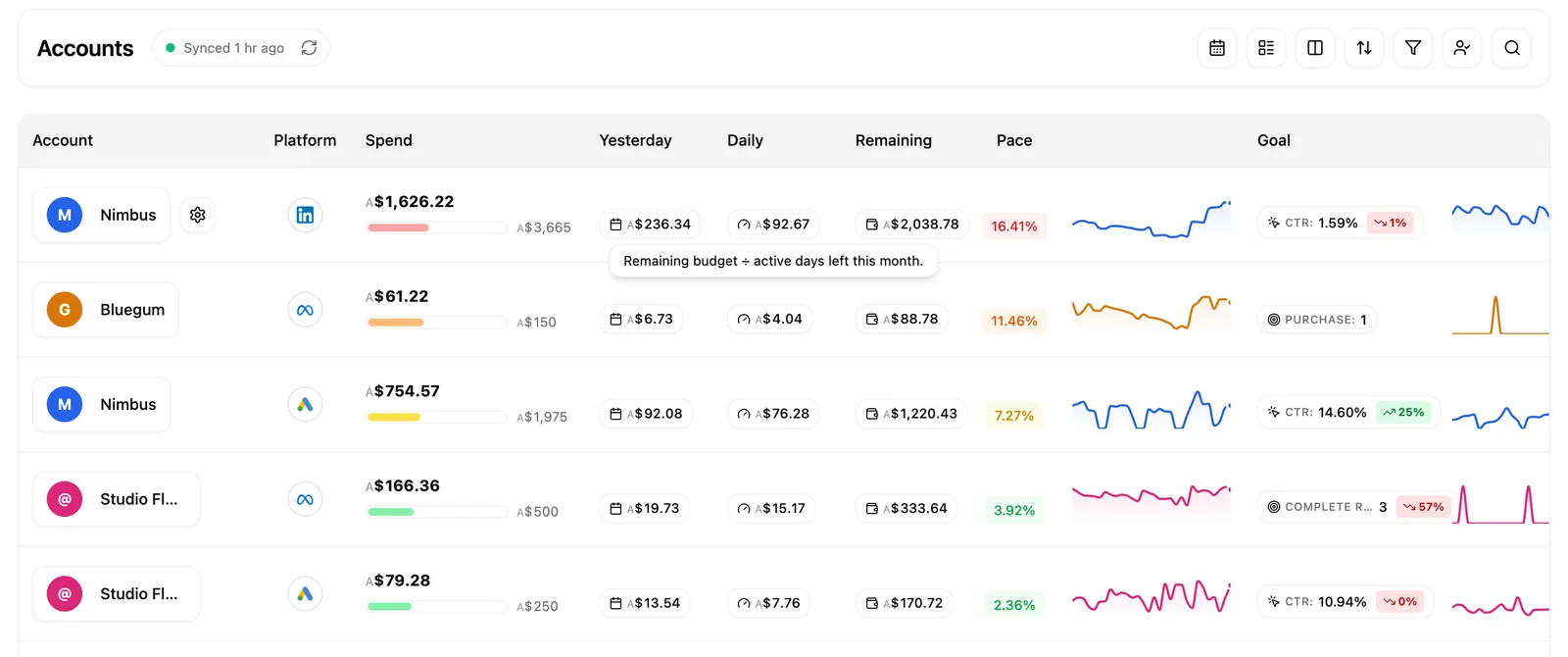
Four things to know as you read a row:
- Trend lines — a mini chart beside Pace plots the last 30 days of daily spend, and one beside Goal plots the same window of your goal metric in the account's own colour. Hover any point for that day's figure. Amazon Ads accounts show a dash instead, and both charts hide on Last Month.
- Account colours — each account carries a colour you pick in its settings, so rows, avatars and charts stay easy to tell apart. It doubles as the accent on that account's client reports.
- The settings cog — hover a row and a cog appears beside the account name. Click it for that account's budget, goals, colour and alerts.
- Account managers — assign any workspace member as an account's manager in those same settings, then use My accounts in the toolbar to narrow the list to the ones you look after. It organises your team; it doesn't restrict access.
An account's Overview tab
Open any account and its Overview tab gives you the same kind of summary for that one account. Cards sit in a grid, and long lists scroll inside their card.
- Four metric boxes across the top, the same ones as on the account's Performance chart. Each has a small daily trend line for the dates you picked, and the dates are written underneath. Change a box's metric from its dropdown.
- Findings: the three newest findings for the account.
- What Dot knows: Dot's summary of how the account behaves, with chips for how many data points and days of history it's built from, and when it was last updated. Hover the ? to see where the summary comes from.
- Improvements, Recent changes, Groups, Reports and Notes. Most have a View all link to their tab. A change that didn't go through shows Failed.
An empty card tells you what will appear there. If a card's data can't load, it says Couldn't load.
Knowing your numbers are current
A Synced chip in the toolbar tells you how fresh the figures are, with a coloured dot beside it and the exact timestamp on hover. Pace refreshes your workspace in the background on a cadence set by your plan, and an open dashboard picks up newer numbers on its own. Use the refresh button any time you want to pull immediately.
Next
Read reading the campaign table to go deeper into a single account and the campaigns inside it.