You can hold a single Google Ads campaign inside a daily budget range you choose, and every pacing run honours it. Use it when a brand campaign, a new launch, or the campaign a client asks about by name has to keep serving regardless of how it stacks up against the rest of the account.
Before you start
You need the Pro plan or higher, which means Pro, Pace One or Agency. The campaign has to be a Google Ads campaign. Every Google campaign type has the setting: Search, Performance Max, Display, Shopping and Video.
Set the limits
- Open the account and find the campaign in the campaign table.
- Open the gear menu on the campaign's row and choose Edit.
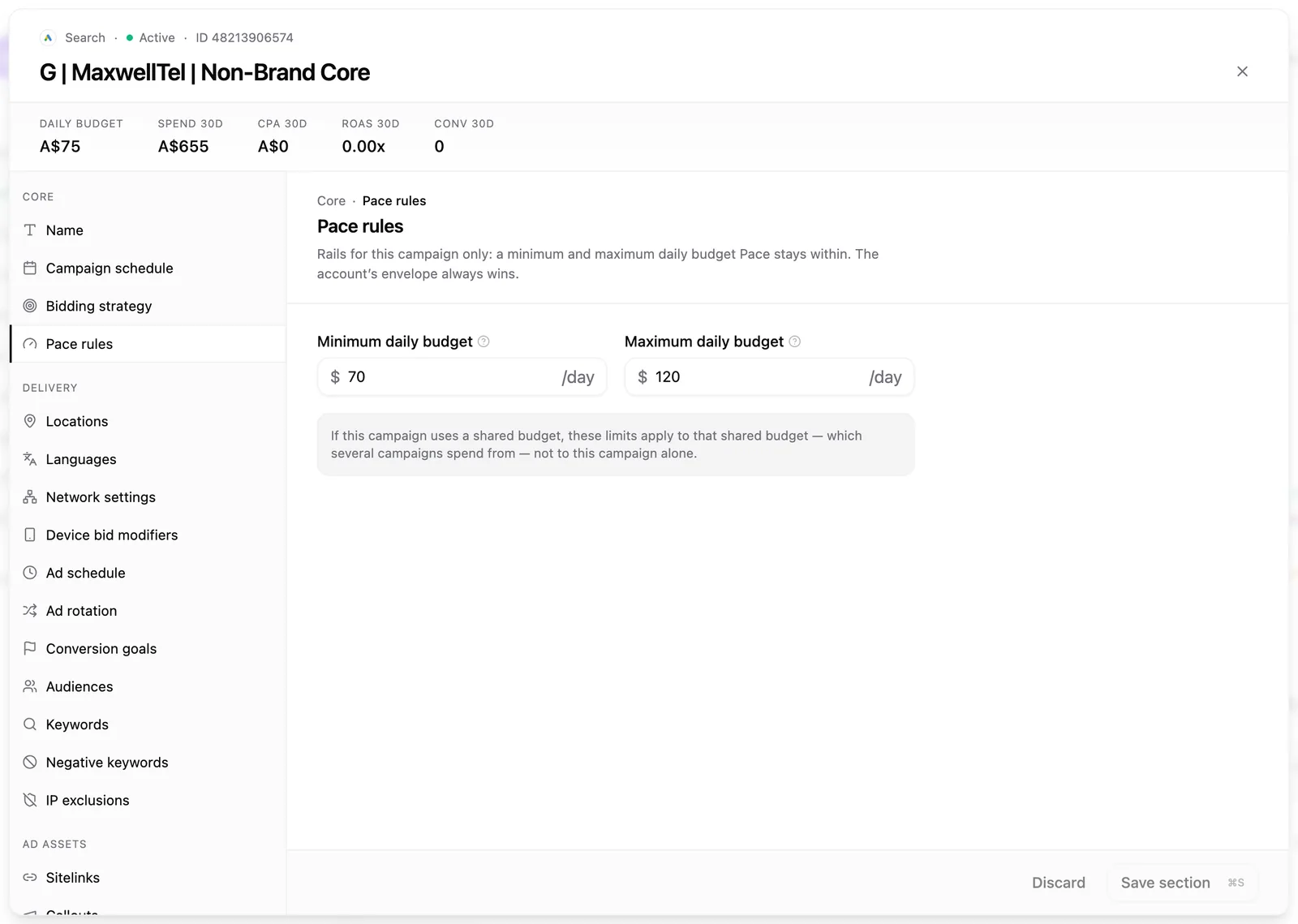
- In the left rail of the dialog, under Core, select Pace rules.
- Enter a Minimum daily budget, a Maximum daily budget, or both. Each field is optional.
- Click Save.
What you'll see
The campaign table shows a small badge next to the campaign's budget: ≥ $X/day when a minimum is set, or ≤ $Y/day when only a maximum is. Hover it for the full summary. A campaign with no limits shows no badge.

How pacing uses the limits
Pace never sets the campaign's daily budget below your minimum, even when the optimiser would rather move that money to a stronger performer. The maximum bounds the budgets Pace sets, not delivered spend. Google can deliver over a daily budget on any given day, which is also true of overspend protection.
Pace also never writes a daily budget below $1 on any platform, or below the platform's own minimum where that one is higher, so a campaign with no minimum of its own still has a floor under it.
If the two ever conflict, the minimum wins and the campaign pins there. On Daily Floor accounts there's one exception: meeting the account's guaranteed daily minimum can push a campaign above its own maximum. Pace does it rather than break the floor, and records it on the Changes page with the campaign, its budget and its cap.
Changing a limit counts as a fresh instruction. On Daily Floor accounts the next run moves straight to the new range instead of stepping toward it.
Warning: If the campaign runs on a shared budget, Pace doesn't change that budget at all, so the limits won't take effect. Pace only manages campaigns that have their own budget. Give the campaign its own budget in Google Ads if you want Pace to pace it.
Remove the limits
Clear both fields and click Save. The section tells you it's a removal before you save.
If a limit won't save
Pace checks the numbers as you type, and the inline error is the same one the save would return. A minimum below Google's own per-campaign daily minimum is rejected, and so is a maximum below the minimum. On Monthly Budget accounts your campaign minimums are summed and checked against the whole month's budget; on Daily Floor accounts they're checked against the account's hard daily cap. A stray zero gets caught at save time rather than steering a month of pacing.