Your account's monthly budget lives in Account Settings, on the Budget tab. Type a figure into Default Monthly Budget, click Save, and Pace adjusts your campaign budgets daily so the month lands on target.
Every account paces in one of two modes: Monthly Budget (the default) or Daily Floor. This article covers Monthly Budget mode, where you give Pace one number a month and it does the daily maths. For how the two modes fit together, read how budgets and pacing fit together.
It's available on every plan, and every workspace member can edit any account's settings.
Set the monthly budget
- Open the account and click the Settings (gear) icon.
- Click the Budget tab.
- On Google Ads, Meta Ads, and TikTok Ads accounts, check that Pacing Mode is set to Monthly Budget; it's the default. LinkedIn Ads, Microsoft Ads, Reddit Ads, Amazon Ads, and X Ads accounts are always in Monthly Budget mode, so there's nothing to switch.
- Type your amount into Default Monthly Budget. Pace uses this figure for every month unless you set a specific month to a different amount (covered below).
- Click Save.
A Settings Saved confirmation appears, and Pace paces to your new number from the next daily run.
Schedule a different number for specific months
When your budget changes month to month (say a client lifts their spend next quarter), set the exact figure per month in the Budget Planner below the budget field. Use the Upcoming / Previous toggle to move through the timeline.
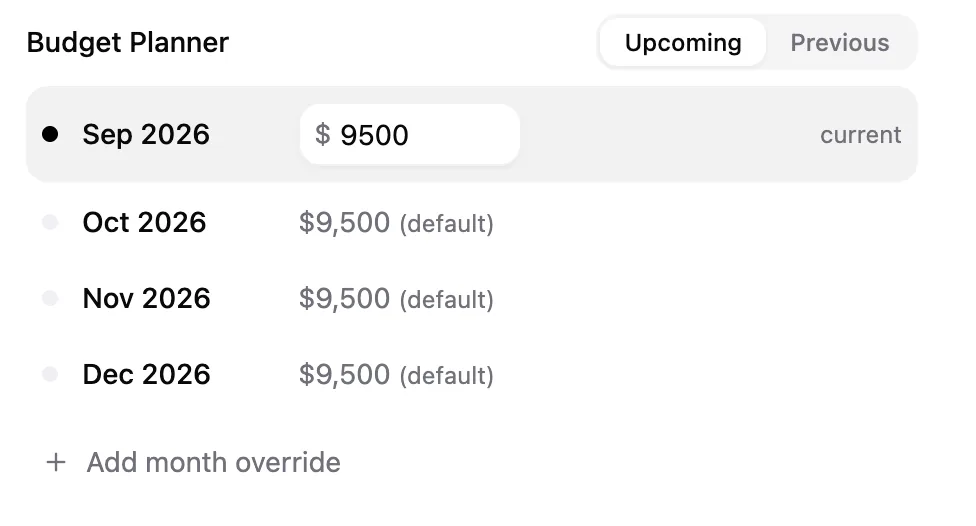
Each month either inherits your default (marked (default)) or carries its own figure, labelled scheduled.
- This month: type a figure straight into the current month's row to override the default. Clear the field to return it to the default.
- A future month: click Add month override, pick the month and year, type the amount, and click Add. To remove a future month's figure later, click the × beside its row.
Changing the Default Monthly Budget updates every month still inheriting it. Months with their own figure stay exactly where you set them, and a scheduled month becomes the pacing target the moment that month starts.
Tell Pace which days you run
If the account doesn't spend seven days a week, set the Active Schedule on the General tab of the same dialog. Pace divides the monthly budget across only the days you select, so daily targets stay accurate, and it holds back alerts on the days you're dark.
- Open Account Settings and stay on the General tab.
- Under Active Schedule, choose Every day, Weekdays, or Weekends.
- For any other pattern, choose Custom and toggle the individual day chips, say Monday, Wednesday, and Friday only.
- Click Save.
The selector reads your choice back in plain language ("Runs 5 days/week · Sat, Sun off"). At least one day must stay selected; Save is unavailable if you clear them all.
Note: The Active Schedule is a pacing instruction to Pace, not an ad schedule. It doesn't change dayparting inside Google Ads, Meta Ads, LinkedIn Ads, Microsoft Ads, TikTok Ads, Reddit Ads, Amazon Ads, or X Ads — set that on the platform itself.
What happens after you save
Pace steers each campaign's daily budget so the month finishes on target. When a month ends, Pace records the budget that applied to it. The Previous view always shows each past month's recorded budget, even if you change the default later.
Note: Your configured budget, not your actual spend, counts toward your plan's managed-spend limit. If a new figure would push the workspace over that limit, Pace blocks the save and names the limit — lower the figure or move to a higher plan, then save again.
Next
- To carry a month's underspend or overspend into the next month, read budget rollover.
- If the campaign runs to its own start and end dates rather than a calendar month, read pace a budget to a flight, not a month.
- To push a new budget to your campaigns right away instead of waiting for the next daily run, read Pace Now and Pace All.