When you need to change budgets across a lot of accounts, edit them all in one spreadsheet instead of opening each account. Open Settings, go to the Bulk Management tab, download your current budgets, change the numbers, and upload the file back. Pace shows you every change before anything goes live.
Bulk editing is available on every plan, and every workspace member can use it. It covers your account monthly budgets and your campaign group budgets. Doing this account by account instead is exactly the kind of manual work that quietly eats an agency's week.
The same spreadsheet also carries settings columns for the account manager, goals, active schedule, the overspend monitor, and alert routing. To see the values each of those accepts and how to clear one, read what you can put in each spreadsheet column.
Working from your own budget sheet instead of the Pace template? On Google Ads you can upload it as it is, and Pace builds a campaign group for each line item. Read import your own budget spreadsheet.
You can also skip the spreadsheet and ask Claude or Dot to make the same changes. Read make bulk changes with Claude or Dot.
Before you start
- You need at least one connected account or campaign group that has a budget.
- Floor-paced accounts aren't listed in the file. They're steered by their spend floor, not a monthly budget. See the daily spend floor.
Download your budgets
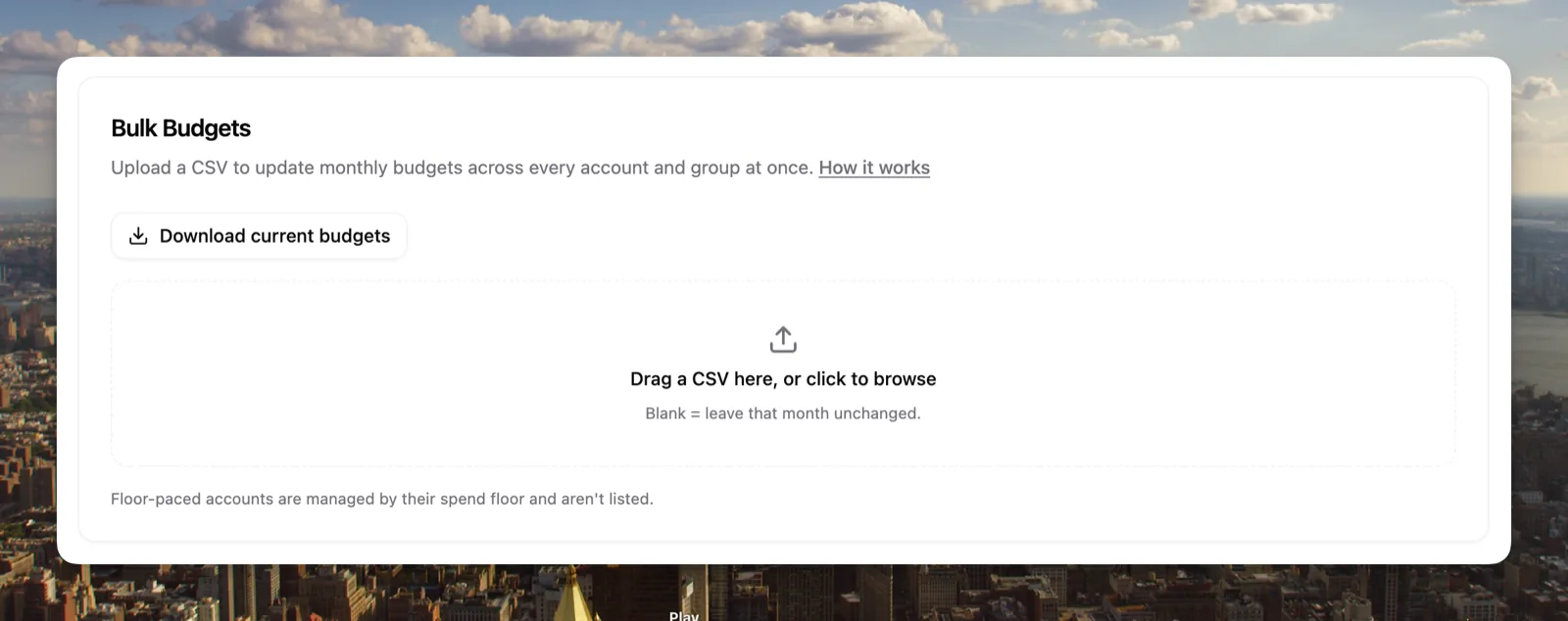
- Open Settings and click the Bulk Management tab.
- Under Bulk Budgets, click Download current budgets.
You get a spreadsheet (.csv) with one row per account and per campaign group. Each row has an id and name so you can tell which is which. Pace matches rows on the id, so leave the id and name columns alone. The budget columns are:
- default — the monthly budget Pace uses for every month.
- One column per upcoming month, such as
2026-08— use these to set a specific month to a different figure.
Edit the numbers
Open the file in Excel or Google Sheets and change the budget cells. Two rules:
- Leave a cell blank to keep that budget exactly as it is.
- Type a number to set that budget to the new figure.
You can set months ahead in the same upload. Plan a whole quarter, and Pace applies each month's figure when its month comes around.
Save the file as .csv when you're done.
Note: A month's figure becomes that month's pacing target, the same as setting it in Account Settings. Scheduling budgets ahead doesn't fight Pace's daily pacing — it tells Pace what to pace toward.
Upload and review
- Back under Bulk Budgets, drag the saved file onto the upload area, or click to browse.
- Pace shows a review screen: every change as its old value and its new value, with a running managed-spend total. Rows you didn't change stay hidden.
- If a change is unusually large, tick I've reviewed the large changes to confirm it.
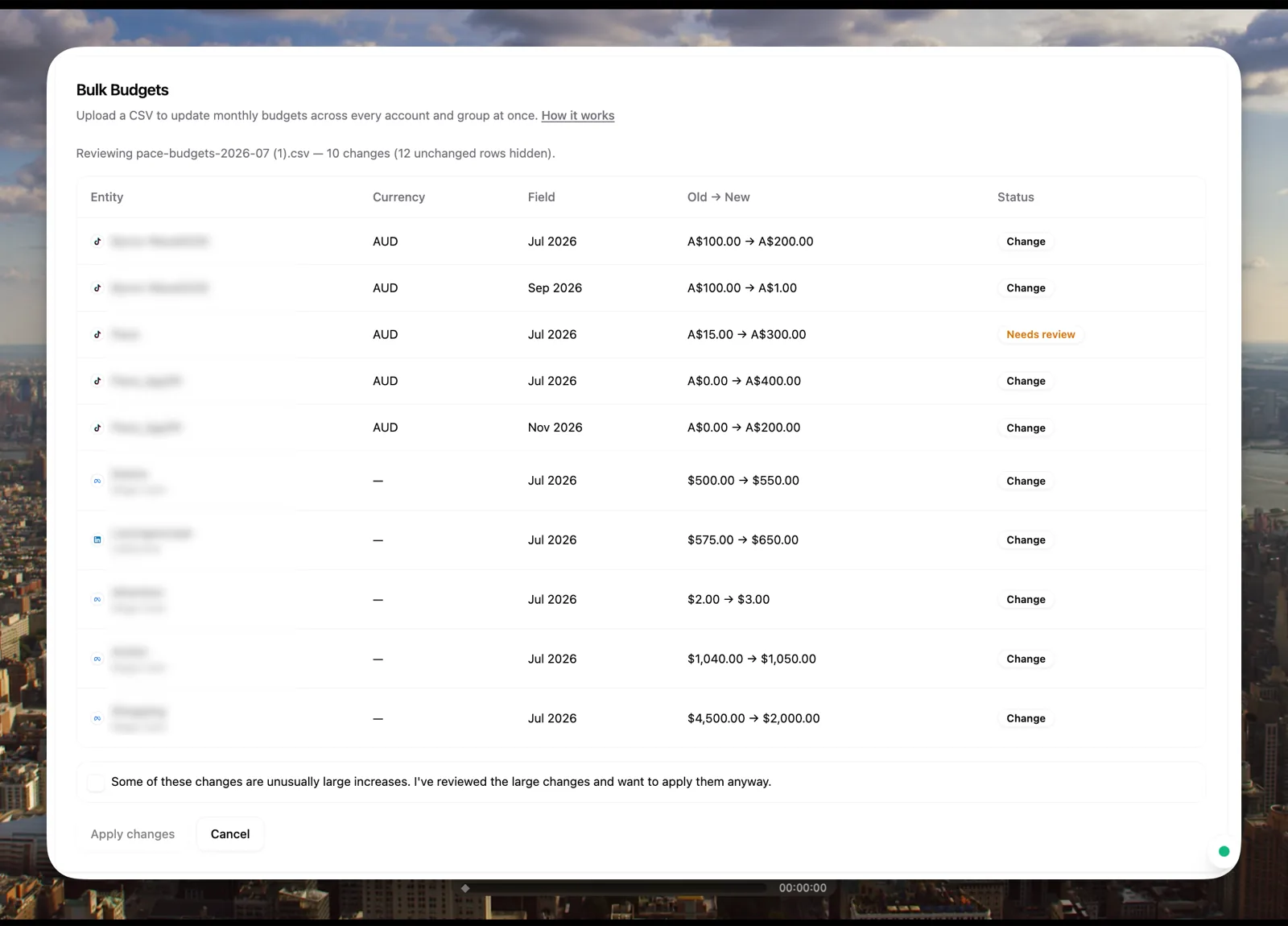
Nothing has changed yet. This screen is your chance to check the numbers.
Apply the changes
Click Apply. Pace writes each change and shows you the result, one row at a time. Download the report if you want a record of exactly what changed.
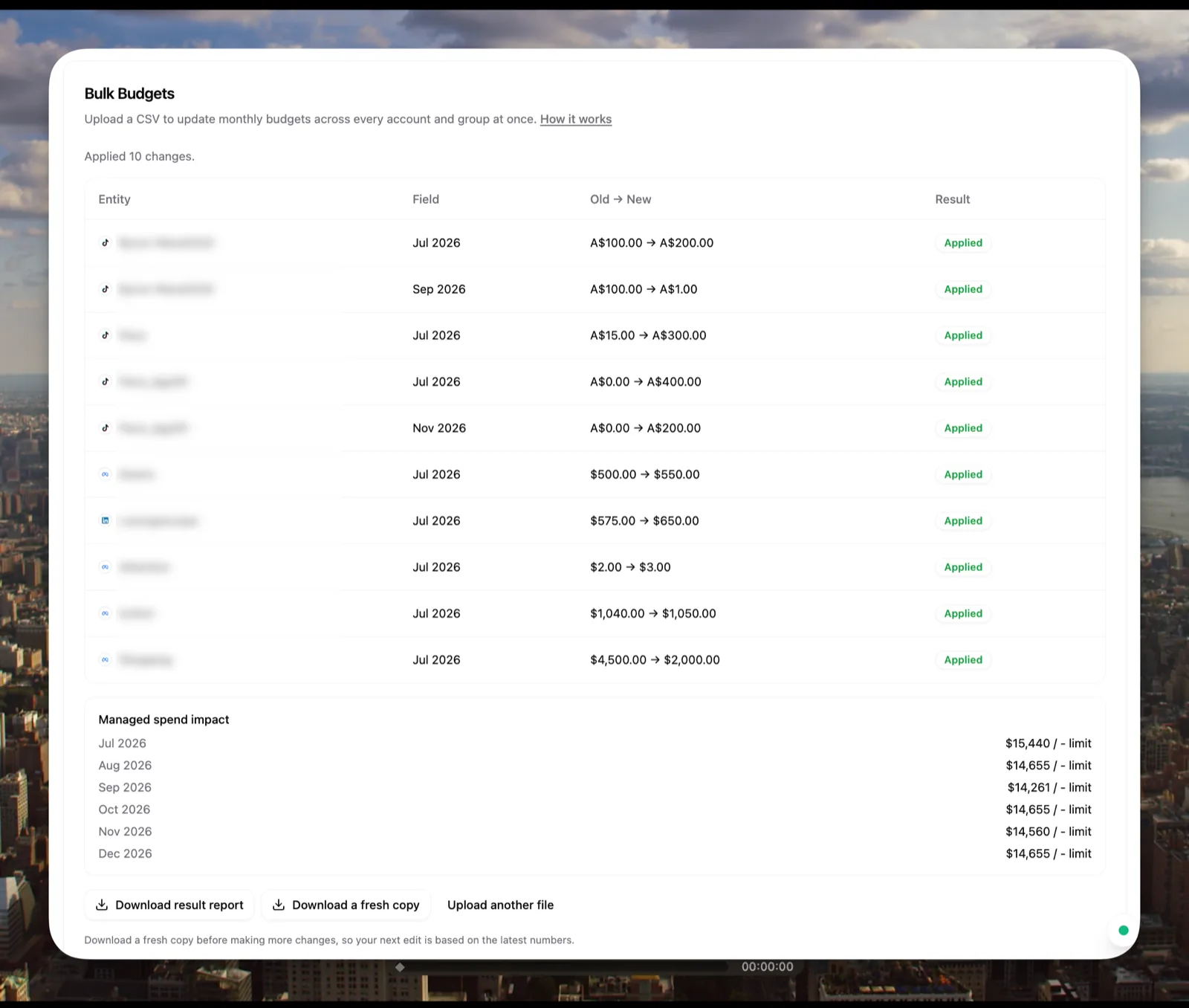
What you'll see when it works
Each account's or group's budget updates to your new figure, and every month you set keeps its own number. From there, Pace paces toward the new targets on its next daily run.
Note: A change that would push your workspace over your plan's managed-spend limit is skipped and flagged in the results rather than applied. Lower the figure, or move to a higher plan, and upload again.
Undo an upload
Changed your mind? Open the Changes tab, find any row from the upload and click Undo batch, then Undo. Every budget and setting the upload changed goes back, on every account at once.
Pace skips anything someone has changed since the upload and lists it for you. Accounts the upload unlinked stay unlinked, so link them again from Linked Accounts. Your ad platforms follow the restored budgets on the next pacing run. If an undo doesn't finish, click Undo batch again to do the rest.
Next
To set one account's budget or schedule specific months by hand, read set your monthly budget. To give a set of campaigns their own budget, read campaign groups.