Upload the budget spreadsheet you already work from, and Pace turns each line item into a campaign group with that month's budget. It finds the campaigns for each line from a number at the end of the campaign name. You don't need the Pace template, and nothing saves until you've checked a preview.
It works for Google Ads accounts. You upload it in the same place as the Pace template: Settings, then the Bulk Management tab. Pace works out which kind of file you've given it.
Permissions required: Importing your own spreadsheet creates campaign groups, so it needs the Pro plan or above. On other plans, the upload area only accepts the Pace template. See campaign groups.
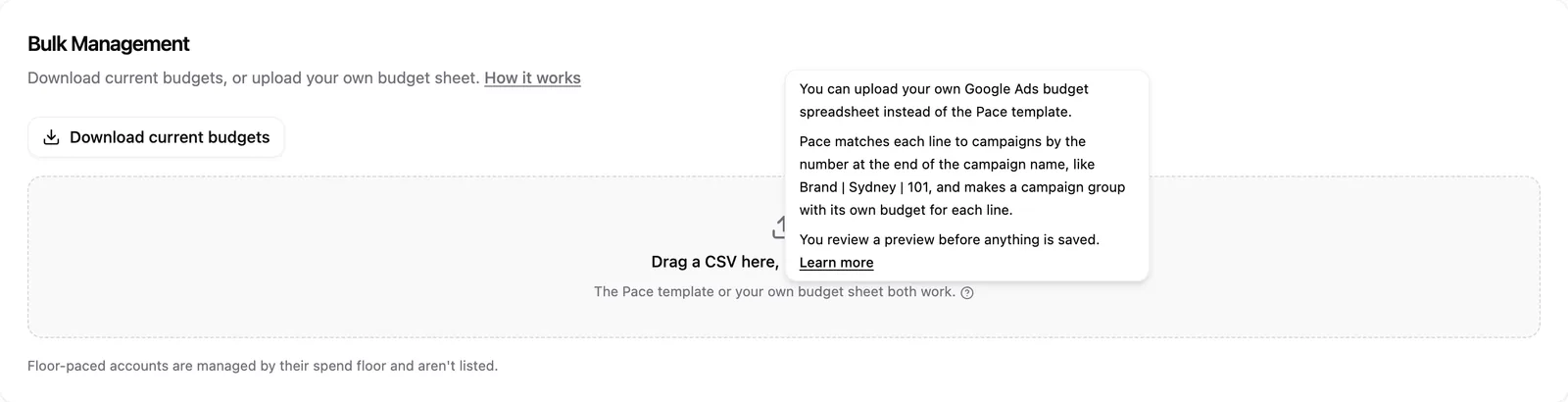
How Pace matches lines to campaigns
Each line in your sheet needs an ID, and it has to be a number. Pace looks for that same number as the last part of a campaign name, after the final |:
Brand | Sydney | 814matches line 814.Brand | Sydney | 814.1matches line 814.1.814,814.1and814.6are three separate lines. Pace never treats them as versions of each other.814 | Brand | Sydneydoesn't match. The number has to come last.
Matching is exact. When several campaigns end in the same number, they go into one group together. A line with no matching campaign is reported and left alone, because Pace never guesses which campaign you meant.
Once Pace has created a group from a line, it remembers that line's ID. You can rename the line item or the campaigns later and next month still matches. A new campaign ending in the same number joins the group on your next import.
Set up a big restructure
The best time to set this up is while you build the campaigns. Say you're splitting one account into 120 campaigns across 40 line items. Give each line item an ID in your sheet, then end every campaign's name with | and that ID as you create it. After that, a single upload creates all 40 groups with their budgets, instead of 40 groups built one at a time.
Import the sheet
- Save your spreadsheet as a
.csvfile from Excel or Google Sheets. - Open Settings and click the Bulk Management tab.
- Drag the file onto the upload area, or click to browse.
- Choose the Google Ads account and the month. You can pick this month or next month.
- Click Continue.
The first time you upload a new layout, Pace asks which columns hold what. Pick the Key column (the line item's ID), the Name column and the Budget column, then click Preview. Pace fills these in for you when it can. It looks for common headings in your first ten rows, such as ID, Code or #, Name or Campaign, and Budget, Amount or Total, ignoring capitals and punctuation. If there is no heading row, it tries to work the columns out from the data. Check its picks before you click Preview, and change any that are wrong. If it can't tell, the three boxes start empty. It saves your choice for that account, so the same layout goes straight to the preview next month.
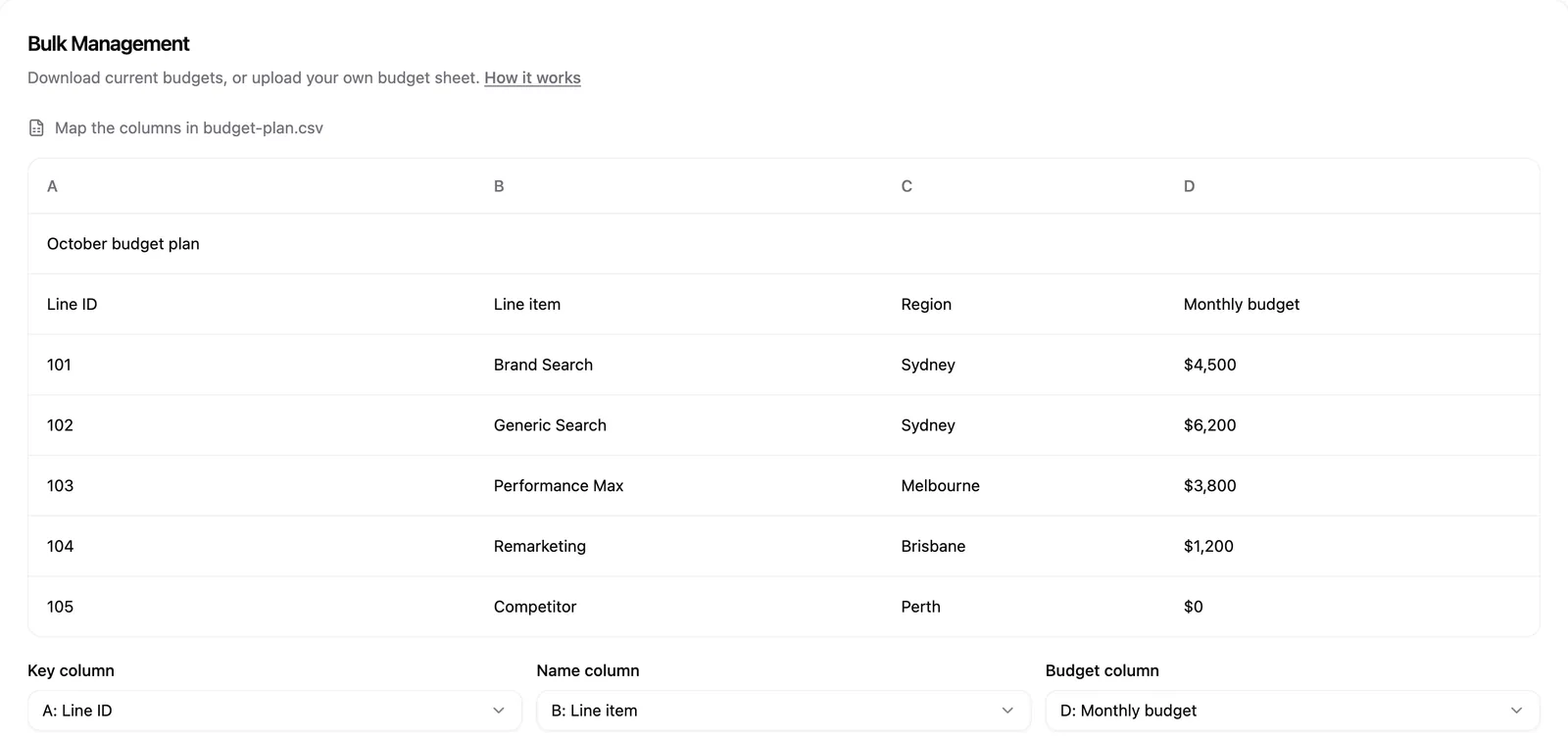
Pace skips any row where the key cell isn't a number, so headers, totals and notes don't get in the way. The preview tells you how many rows it ignored.
Read the preview
Every line in the sheet and every campaign in the account gets one status:
| Status | What it means |
|---|---|
| New group | Pace creates a group for this line with its budget. |
| Budget update | The group already exists, so Pace sets this month's budget. |
| $0 | No spend. The budget is 0 or blank, so the line gets $0 for the month. |
| No campaign | No campaign name ends in this ID. Nothing is written. |
| Not in sheet | A campaign that no line in the sheet covers. Nothing is written. |
| Conflict | The campaign is already in a group you made by hand. |
| Error | Pace couldn't read the budget, or the ID appears twice. |
Budgets can include $ signs and commas. Click Download reconciliation to share the whole preview as a CSV. If the columns look wrong, click Re-map columns.
A campaign that's already in a group you made by hand never moves on its own. To move it into the group built from your sheet, tick the reassign box on its Conflict row. If any budget is an unusually large increase, tick the confirmation box under the table. Apply changes stays off until you do.
Apply
Click Apply changes. The results screen marks each line Applied or Skipped, and gives a reason for anything skipped.
Pace also sets the account's monthly budget to the total of its group budgets for that month, and the results screen shows the new figure. Your sheet decides that number, whether the total went up or down. Accounts on Daily Floor pacing don't have a monthly budget, so theirs doesn't change.
Everything from the import lands as one entry in the account's Changes tab, with each group listed inside it.
$0 lines
A line at 0, or with a blank budget, gets an explicit $0 for that month. Pace pauses that group's active campaigns and doesn't pace or fund them from leftover budget. Put a real number in a later upload and Pace switches those campaigns back on and paces them again. Read more in overspend protection.
Upload again each month
Import your sheet once a month. If the current month has started and you haven't uploaded its budgets, Pace holds those groups still rather than pacing them on an old number. You'll get a Budgets needed alert telling you which month to upload. The account's other groups carry on as normal.
To change budgets on the Pace template instead, read edit budgets in bulk with a spreadsheet.