To check, open the Pace status page at status.paceads.com. It is hosted outside the app, so you can reach it even if Pace itself won't load.
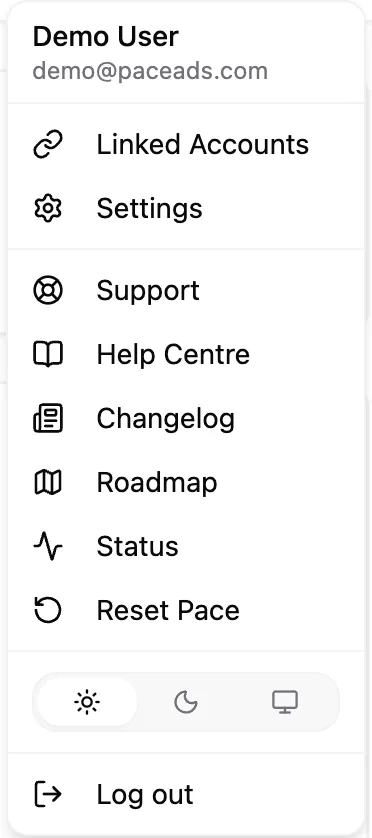
You can also open it from inside Pace: select your name at the top right and choose Status. It opens in a new tab. On the mobile menu, Status sits just below Roadmap. The Help Centre, Changelog and Roadmap pages have a Status link in their header too.
When an ad platform won't answer
Sometimes Google Ads, Meta or another platform is slow or briefly unavailable even though Pace is fine. When that happens, Pace keeps the last figures it read successfully instead of showing blanks or zeros. It adds one line above the table, for example:
Google Ads data is temporarily unavailable, showing figures from 4:20pm.
The line names the platform and the time those figures were taken. The same line appears on the account's own page. It clears by itself once the platform answers again, and Pace asks the platform again the next time the figures load.
Pace or the ad platform?
| What you see | Likely cause |
|---|---|
| The status page reports an issue, or Pace won't load at all | Pace |
| A dated "temporarily unavailable" line naming one platform | That ad platform |
| One account stuck or showing a red Synced chip while others are fine | That account's connection |
What to do next
- Wait a few minutes and reload. Most platform delays clear quickly.
- If one account stays red, check its connection. See why your ad account isn't syncing.
- If the figures just look behind, see why your data may be out of date.
- Still stuck? Message the Pace team from inside the app, or email [email protected].