Amber means the account's spend is more than 5% away from where it should be at this point in the month. Red means it's more than 15% away. Green means it's within 5%, ahead or behind. Spending too slowly counts the same as spending too fast, so an account that's falling behind turns amber or red too.
What does each colour mean?
| Colour | Gap from expected spend | What Pace calls it |
|---|---|---|
| Green | 5% or less | On pace |
| Amber | More than 5%, up to 15% | Drifting |
| Red | More than 15% | Off pace |
Hover the pace pill on the Accounts page to see the exact gap, for example "8.00% ahead of expected spend, outside the ±5% on-pace band". A positive figure means the account is spending faster than planned. A negative figure means it's behind.

The spend bar beside the pill uses the same colours. So do the pacing summary and the Accounts card on Home, Dot's opening line, and the on-pace verdict in weekly email and Slack reports.
How does Pace work out expected spend?
Pace compares two shares: how much of the monthly budget you've spent, and how much of the month has passed. The pill shows the difference. Halfway through the month with 58% of the budget spent, the pill reads +8.00% and turns amber.
- Today counts by the hour. Pace measures the time passed in the account's own timezone, so the figure moves through the day instead of jumping at midnight.
- Only active days count. If Active days is set to Weekdays (in Account Settings, under Schedule), weekends don't add to expected spend. A quiet Saturday won't push the account behind.
Why is the pill grey or showing a dash?
There's no figure to judge yet. Hover the pill for the reason. Most often the account has no monthly budget, and the tooltip reads "Add an account budget to track account pace." Set your monthly budget and the colour appears.
Two pacing setups work differently:
- Custom flighting accounts are measured against the current flight's budget and days, not the month's. The pill shows a dash while Pace waits for the first flight pacing run and after a flight ends. See custom flighting.
- Daily Floor accounts compare yesterday's spend with the floor. The pill is green at or above the floor and red below it. It turns amber above the soft ceiling and red above the hard daily cap. See the daily spend floor.
What do the pause and shield icons mean?
They sit beside the account name when Pace isn't fully pacing the account. Hover either one for a reminder.
- Pause icon: the account is set to Off, so Pace doesn't pace it.
- Shield icon: the account is on Protect only. Pace pauses it at the monthly budget but doesn't change its budgets.
Accounts on Pace and protect, the default, show no icon. The pace pill still appears on Off and Protect only accounts, because it measures spend, whoever sets the budgets. See choose what Pace does on an account.
What does Drifting mean?
Drifting is the amber band. The Accounts card on Home lists off-pace accounts first, then drifting, then on pace, with the biggest gap first within each. Use All, Off, Drifting and On pace to filter it. On this card, Off means off pace (red), not the Off setting.
How do I sort my accounts by pace?
On the Accounts page, click the Sort Accounts button in the toolbar. Under Pace, pick Over to Under (furthest ahead first) or Under to Over (furthest behind first).
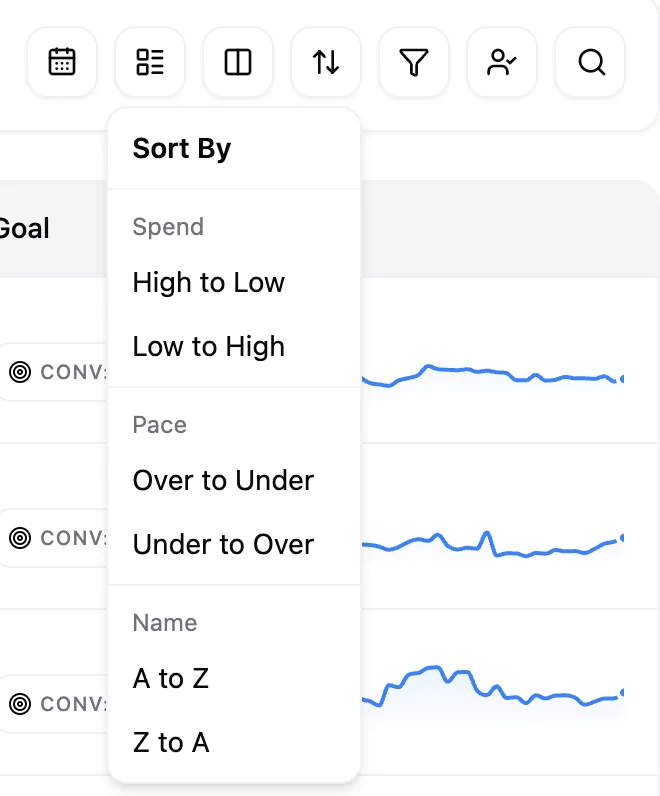
Each account is ranked by the exact figure on its own pill, whichever pacing setup it uses. The sort follows direction, not colour. A red account that's far behind sits at the bottom of Over to Under, below the green ones. Accounts with no figure to show collect at the bottom of Over to Under.
Still unsure why an account is off pace? Email [email protected] with the account name.