Pace works in your phone's browser with nothing to install. Sign in at the usual address and you get a layout built for a small screen: the same accounts, figures and pacing colours, arranged so you can check them with one thumb.
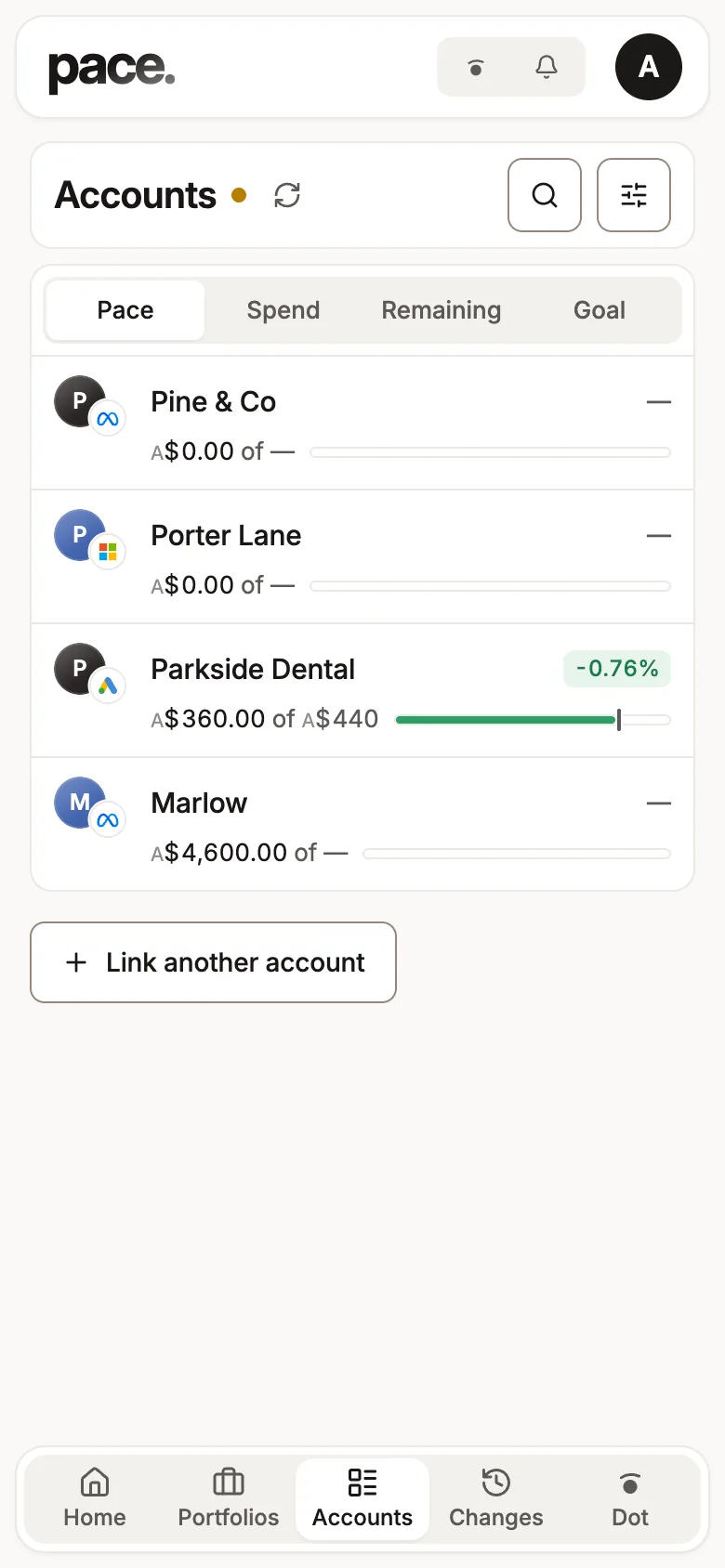
Getting around
A floating bar near the bottom of the screen takes you to Home, Portfolios, Accounts, Changes and Dot, in the same order as the menu on a computer. Findings, notifications and your avatar menu sit in the bar at the top. Launch, Linked Accounts, Settings and Support are in the avatar menu.
On Accounts, Portfolios and Changes, the page opens with a small header card: the title, and buttons for search and View options. Tap the search button to type a name, and tap the cross to close it. View options opens a panel with each setting and what it's set to: the period, sort order, platform, Campaign groups and My accounts only on Accounts; the period and sort order on Portfolios; the date range and filters on Changes. A small number on the button tells you how many settings you've changed.
Inside an account or a portfolio, a row of labelled tabs across the top replaces the icon rail you see on a computer. Swipe it sideways to reach the rest.
Lists in place of tables
Wide tables become lists on a phone. On Accounts, Portfolios, the Groups view and the accounts card on Home, each row shows:
- the account mark and name, with one figure on the right
- spend against budget, the spend bar and its tick for where spend should be today
- the pace pill, when the figure on the right is something other than pace
Choose that figure with the switcher at the top of the list: Pace, Spend, Remaining or Goal. Every list follows your choice, and Pace remembers it on that phone. Tap a row to open the account, group or portfolio.
Tap a row for the detail
On an account's campaigns, ad groups or ad sets, ads and keywords, each row shows the name, status, budget and one metric. Tap Show above the list to pick that metric from the columns you've turned on. The total for it sits above the list.
Tap a row and a panel slides up with every metric for that row, plus its controls: the status, Settings on Google Ads and Meta Ads campaigns (for Edit, and Archive on Google Ads), and the gear beside a Google Ads ad's status. They work the same way they do on a computer.
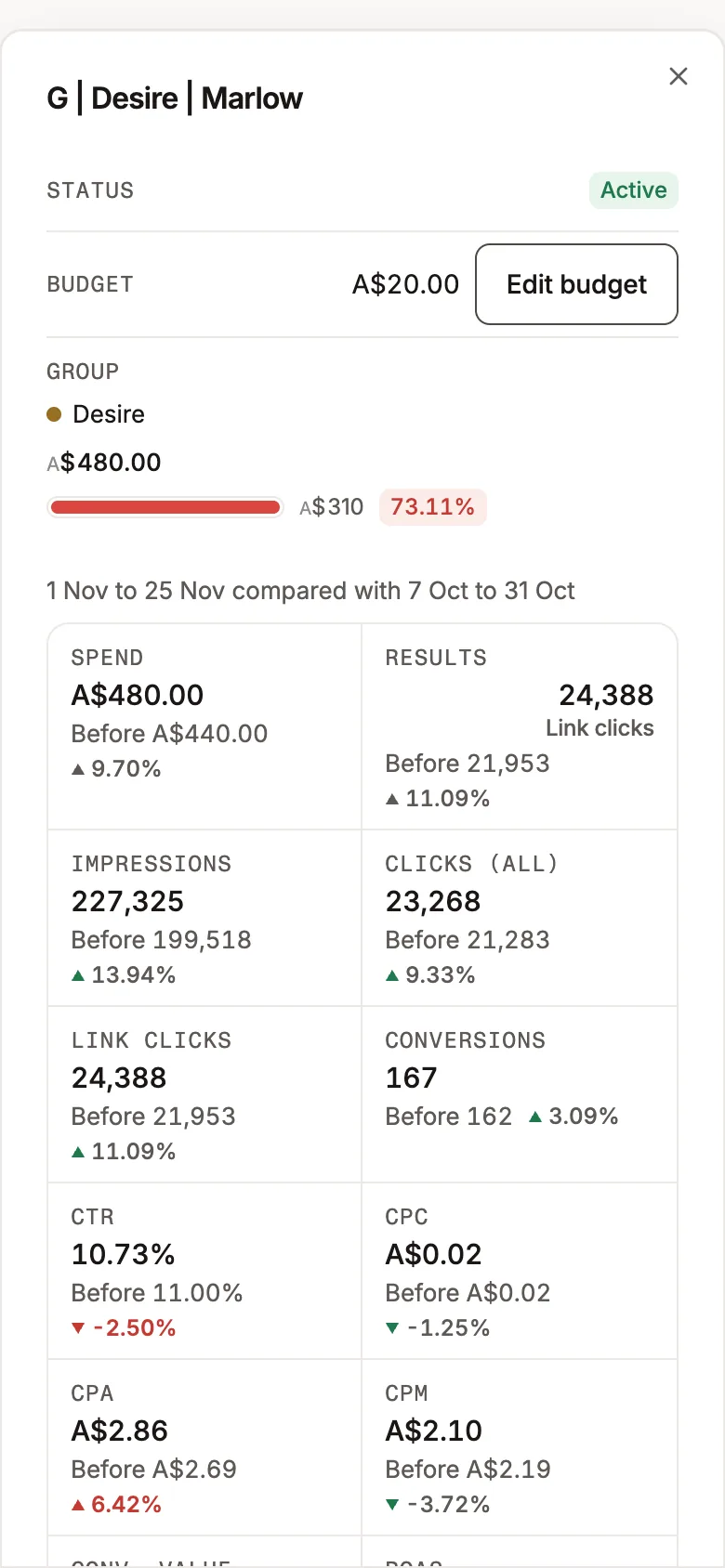
Want the whole table? Tap Table at the top of the list. The table scrolls sideways inside its card, and Pace remembers your choice for that table. Tap List to go back.
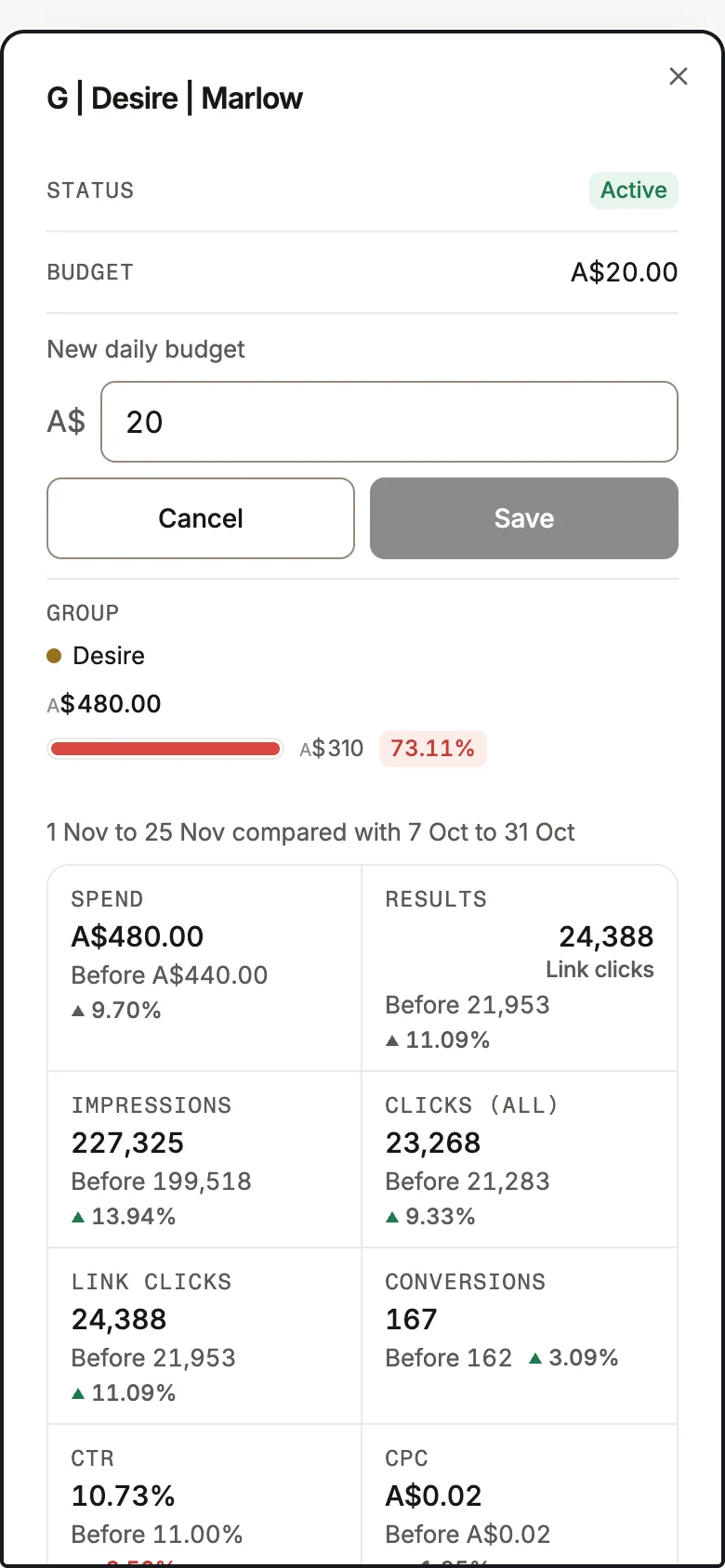
Change a budget
- Tap the campaign, ad group or ad set.
- In the panel, tap Edit budget.
- Type the new amount. Use a dot for cents, for example 12.50.
- Tap Save.
Pace sends nothing while you type, and tapping Cancel or closing the panel leaves the budget as it was. A big increase asks you to confirm first, just like on a computer. If the budget changes while you're typing, for example because a pacing run just finished, the panel tells you and holds Save until you check your figure.
A budget that's read-only on a computer is read-only on your phone too, and the panel says why.
Help tips and hidden buttons
Tap the small ? beside a setting or figure to read its tip. Tap anywhere else to close it. On a tablet, buttons that appear when you hover a row on a computer, such as a settings cog, are always showing.
What works best on a computer
Almost everything works on your phone. A few things are easier on a bigger screen:
- Select all is only in Table view. In the list you tick rows one at a time.
- The plan comparison and the bulk budget tools stay as tables you scroll sideways.
- Grouping campaigns by bid strategy asks you to switch to Table view.
- Dot opens full screen on a phone. The docked side panel needs a wider screen.
Turn your phone sideways and, if the screen is wide enough, Pace switches to the computer layout.