Agencies keep many client budgets on track by putting every account in one place, grouping accounts by client, giving each client an owner, and getting told the moment a client drifts off pace. In Pace that's one workspace with a portfolio per client, an account manager on every account, alerts routed to each client's own channel, and budgets you can change in one spreadsheet.
Why it gets hard
One client is easy to pace by hand. Twenty clients across Google Ads, Meta Ads and LinkedIn Ads is not. Each client has a monthly budget, often split over several platforms and accounts. Someone has to check spend against that budget every few days, adjust daily budgets, and explain the result at month end.
Many agencies run this from a spreadsheet. The sheet goes stale between checks, the numbers come from several ad platforms, and nobody can see at a glance which client needs attention today. A common result is a client who underspends quietly for two weeks, or one who runs out of budget before the month ends.
Key terms
- Pacing: spending a budget evenly enough that the month lands on target, neither short nor over.
- Portfolio: a group of ad accounts in Pace that belong to one client, shown as one blended total.
- Account manager: the teammate assigned to an account in Pace.
- Pace pill: the coloured percentage beside an account or portfolio that shows how far ahead of or behind expected spend it is. Green means within 5%.
How it works in Pace
One portfolio per client
Create a portfolio for each client and tick every account that client owns, from any platform. The Portfolios page then lists each client with month-to-date spend against the blended budget, a pace pill, and goal badges. Sort by pace to put the clients that need you first at the top. Portfolios are on the Pro plan and above. See group accounts into portfolios.
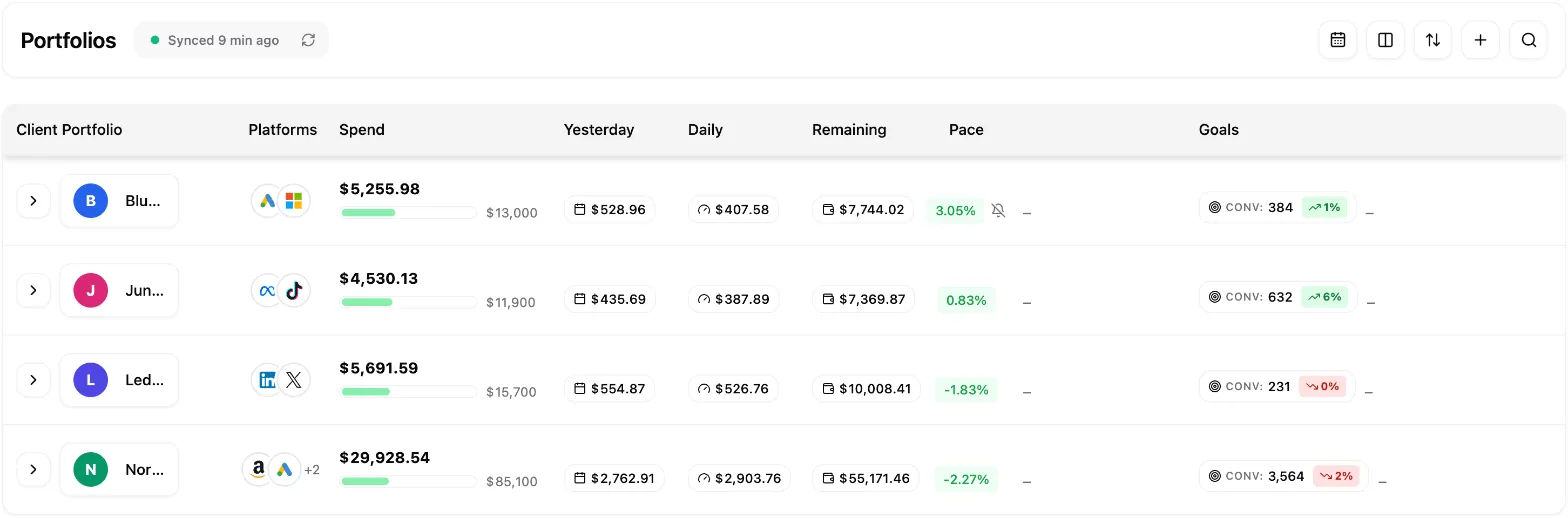
Pace can also alert you when a whole client is off pace, even if no single account has crossed its own threshold.
An account manager on every account
Open an account's settings and pick a teammate under Account manager. That person can then use the Show only accounts you manage button in the Accounts toolbar to see just their book of clients. It switches on by itself once someone has an account assigned, and remembers their choice after that. It's a view filter, not a restriction: everyone can still see and edit every account.
Alerts that go to the right client channel
Each account's Notifications section holds one Slack channel and one Email recipients list. Alerts, Findings and the weekly report for that account all follow them, so each client's notices land in that client's channel instead of one shared inbox. Recipients can be teammates or outside addresses. Per-client routing is on the Pro plan and above. See setting up alerts.
New budgets for every client at once
At the start of a month, download every account's budget as one spreadsheet from Settings, under Bulk Management. Change the numbers, upload it, and review every change before you apply it. You can set months ahead in the same file. Bulk editing is on every plan. See edit budgets in bulk with a spreadsheet.
Reports with your agency's brand
Client Reports builds a branded PDF for any account or portfolio, with your agency name and logo, and commentary Pace drafts for you. It's on the Pro plan and above. See build branded reports for your clients.
Common misconceptions
"Each client needs its own workspace." It doesn't. One workspace holds every client. Portfolios and account managers keep them separate in your views, and per-account routing keeps their alerts apart.
"A viewer login is a safe way to give a client access." It isn't. The Viewer role can't change anything, but it sees every account in the workspace, including other clients. Use it for your own team, such as customer success staff who check pacing but shouldn't move money. Share results with clients through reports and the weekly email instead. See invite team members and set their roles.
"Adding teammates costs extra." Team access is included on every plan, with no per-seat charge.
A real-world example
An agency runs 12 clients across 30 ad accounts. It creates 12 portfolios, assigns each account to one of three account managers, and points each client's alerts to that client's Slack channel. On the 1st, one person sets next month's budgets for all 30 accounts in a single upload. Each morning, every manager opens Accounts to see only their own clients, and sorts Portfolios by pace to see who needs attention first.
Next
Start by creating your first client portfolio: read group accounts into portfolios.