Your account goal tells Pace which campaigns deserve the money. Pick a metric such as CPA or ROAS, or the exact conversion action you judge the account on, and Pace moves budget toward the campaigns that deliver it.
The goal decides where the money goes, never how much gets spent. Spending your full monthly budget always comes first, so a weak result moves budget to a better campaign rather than leaving the month underspent. See how budgets and pacing fit together.
Permissions required: Owner, admin or member role on the workspace. Viewers can't change goals.
Set the primary goal
- On the Accounts page, hover the account and click the settings cog next to its name.
- Click Goals in the left menu.
- Under Performance goal, click the Primary goal control. It reads None until you set one.
- Search or scroll the list. Metric goals come first, then Conversion actions on Google Ads, Meta Ads and TikTok Ads.
- Click your goal. It saves straight away, and the footer shows Saved. Changes apply on the next pacing run. with an Undo button.
Pick CPA, ROAS or a conversion action and a Target CPA or Target ROAS box appears. It's optional: leave it blank to let Pace judge.
What's in the list
Metric goals are CTR, Clicks, Conversions, Impressions, ROAS and CPA, plus Phone calls on Google Ads. TikTok Ads uses its own objectives, such as Traffic and Web conversions. Conversion actions come from the ad account itself:
- Google Ads lists the account's enabled conversion actions.
- Meta Ads lists events recorded in the last 90 days, plus every active custom conversion under a Custom conversions heading, each marked Custom and shown by the name you gave it in Meta.
- TikTok Ads lists your pixel events, each shown with its pixel code.
On Google Ads and Meta Ads, Pace sees how many of your chosen action each campaign drove, so it knows which campaigns bring in the result you care about. A Meta custom conversion goal also counts toward the account's Conversions figure.
Add a secondary goal
The Secondary goal keeps efficiency in check while Pace chases the primary goal. Pick Improve CTR, Reduce cost per click or Reduce cost per conversion, or on Google Ads Improve search impression share.
Clear a goal
Click the ✕ beside the goal. With no goal, Pace paces to the budget alone.
Switching goals keeps your target only when it's measured the same way, so a $40 CPA target never turns into 40x ROAS.
Note: On Protect only accounts, goals are dimmed and not used, because Pace isn't changing budgets. See choose what Pace does on an account or group.
How campaign groups use it
A campaign group with no goal of its own uses the account's goal, and its goal controls read Same as account. Set a goal on the group and it applies to that group's campaigns instead. To give one campaign its own number to beat, use a per-campaign KPI target.
Read the Goal badge and trend line
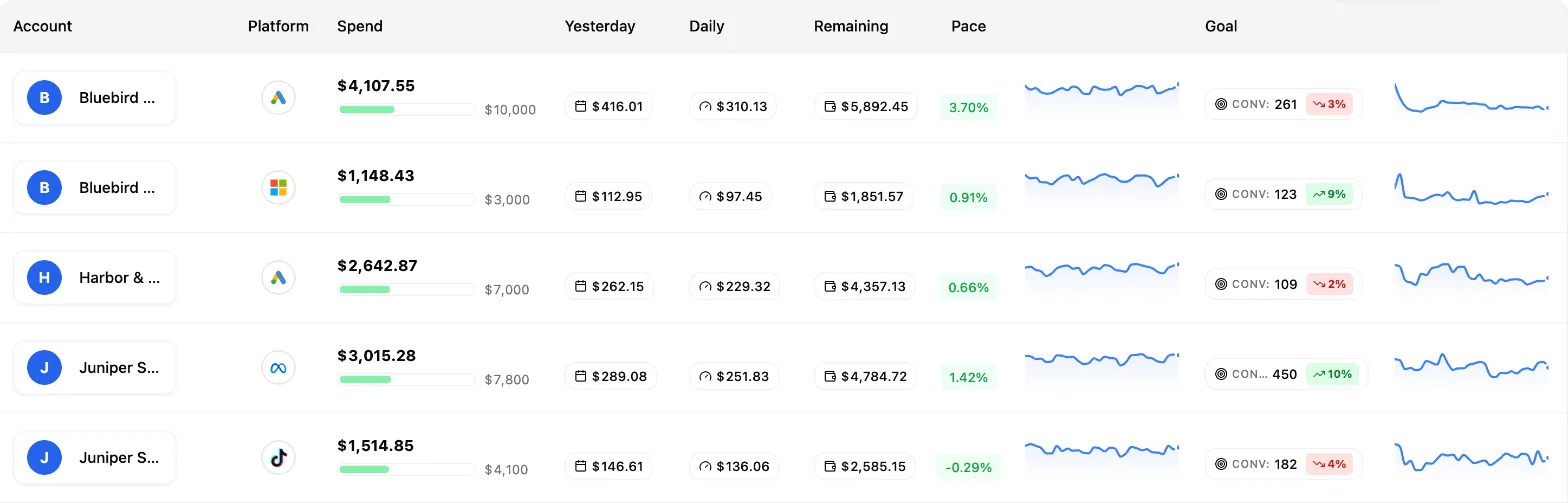
On the Accounts page, the Goal column shows a badge with the account's goal figure over the last 30 days, and an arrow comparing it with the 30 days before. A falling CPA shows green, because that's the good direction.
| Goal | Badge shows |
|---|---|
| CPA, ROAS, CTR | That figure |
| Clicks | CPC |
| Impressions | CPM |
| Conversions, or no goal | Conversions |
| A conversion action | The action's name and its count |
Beside it, a trend line draws the same figure day by day in the account's colour. Hover any point for that day's number. The line is hidden when you view Last Month, and shows a dash for goals with no daily history, such as phone calls, video views and TikTok Ads conversion actions. To hide both, click Manage Columns and untick Goal.