Two text fields shape every budget decision Pace's AI makes: your workspace's Management philosophy and each account's Additional context. Pace reads both before every pacing run, on every platform it paces.
| Field | Where it lives | What it's for |
|---|---|---|
| Management philosophy | Workspace Settings, Intelligence tab | How your team runs every account |
| Additional context | Each account's settings, General section | What's true for this one account |
Write your management philosophy
- Open Settings and click the Intelligence tab.
- Find Management philosophy. The field is labelled How your team runs accounts.
- Type your approach in plain sentences.
- Click out of the field. Pace saves it and shows Management philosophy updated.

Permissions required: Only workspace owners and admins see the Intelligence tab.
Write the rules your team applies to every client. Good examples:
- "Top of funnel campaigns earn cheap impressions that feed our retargeting, so don't starve them just because their CPA looks high."
- "Brand search is protected. Never cut it to fund other campaigns."
- "We'd rather move budget gradually than chase one strong day."
Less useful examples:
- "Get the best results." It doesn't tell Pace anything it isn't already trying to do.
- "Spend the whole budget." Pace already treats spending your full monthly budget as its first priority.
- Anything about one client. That belongs in that account's Additional context.
Add context to an account
- Open the account and click the Settings (gear) icon.
- Stay in the General section and scroll to Context for Pace.
- Type into Additional context. It saves on its own, and the change applies on the next pacing run.
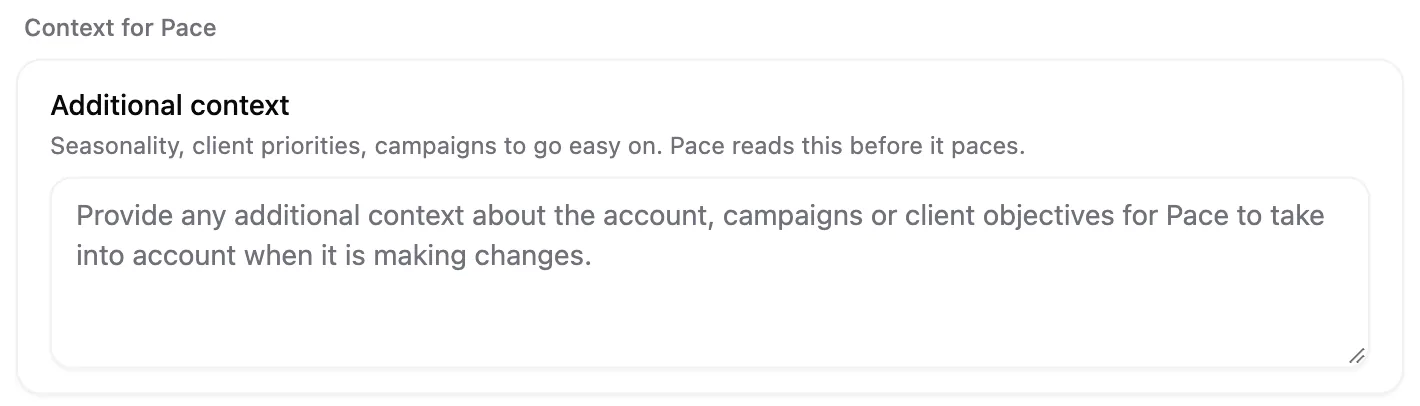
You can also fill this in during onboarding.
Use it for the facts about this account that Pace can't see in the data. Good examples:
- "Spring sale runs 1 to 14 March. Weight budget toward the Sale campaigns until then."
- "Client cares about lead volume this quarter, not CPA."
- "Go easy on the Brand Awareness campaign. It's contracted at a fixed level."
- "Protect CPA even if we underspend this month."
Less useful examples:
- "Important client." Pace can't act on it.
- Login details, passwords or anything private. This field is for strategy notes.
How pacing uses what you write
On each run, Pace's AI reads your philosophy and the account's context alongside its goals, budget and performance data. Your notes mainly decide where budget goes between campaigns.
One instruction changes how much gets spent. By default Pace aims to spend the full monthly budget. If Additional context clearly asks for a slowdown, such as "protect CPA even if we underspend", Pace follows it and restates your instruction in the reasoning for that run. Pace doesn't read a slowdown into vague or general notes.
Your notes can't override Pace's safety limits. Platform minimum budgets and the cap on how far one budget can move in a day still apply.
If an account has campaign groups, each group has its own Additional context field. A group's run reads the account's context and the group's together.
To check that Pace followed you, open the account's Changes tab and read the Reasoning on its latest pacing change. See how Pace decides budget changes for the full process.
How Dot uses it
When you ask Dot about an account you're viewing, Dot reads that account's Additional context along with its goals and budget. It reads about the first 500 characters, so put the most important point first. Dot doesn't read the workspace management philosophy.
Note: Saving either field never starts a pacing run. Pace uses your new wording on its next pacing run.