Pace adjusts your budgets at the run times you set in the Pacing schedule card, on your workspace's clock. Set them once and every paced account in the workspace follows them.
Permissions required: Only workspace owners and admins can see the Intelligence tab where the schedule lives. Only the owner can change the workspace timezone.
How many runs you get
| Plan | Scheduled runs a day |
|---|---|
| Basic | 1 (Daily run) |
| Pro | 2 (Morning run, Afternoon run) |
| One and Enterprise | 3 (Morning run, Midday run, Evening run) |
During your free trial you get three runs. When your paid plan starts, Pace keeps your first run times, up to the number your plan includes.
Set your run times
- Open Settings and select the Intelligence tab. On Basic and Pro the tab carries a One badge, but the Pacing schedule card is there on every plan.
- Turn on Automated pacing. Your run times appear underneath.
- For each run, turn on the switch beside it to use it, or turn it off to skip it.
- Pick an hour from the dropdown next to each run you're using. Times go on the hour, from 00:00 to 23:00.
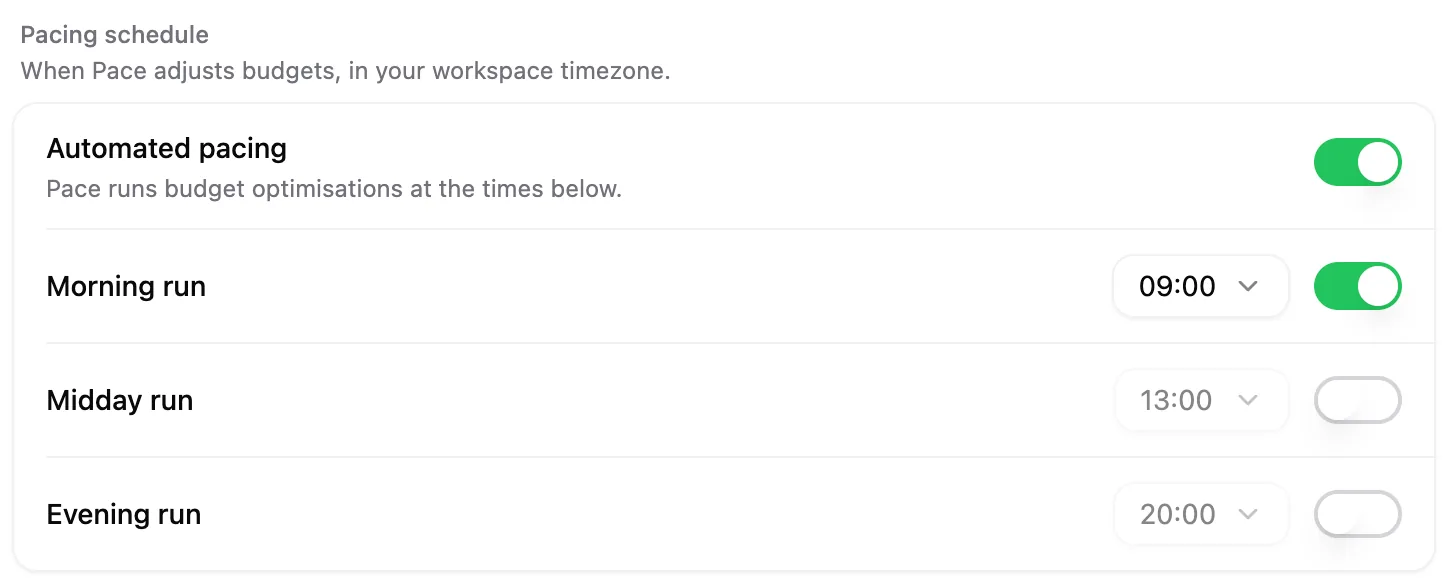
Changes save as you make them, and Pace confirms with Pacing schedule updated. A new run starts with a suggested time: 09:00 for the first run, then 16:00 for Pro's afternoon run, or 13:00 and 20:00 for the midday and evening runs.
Check your timezone
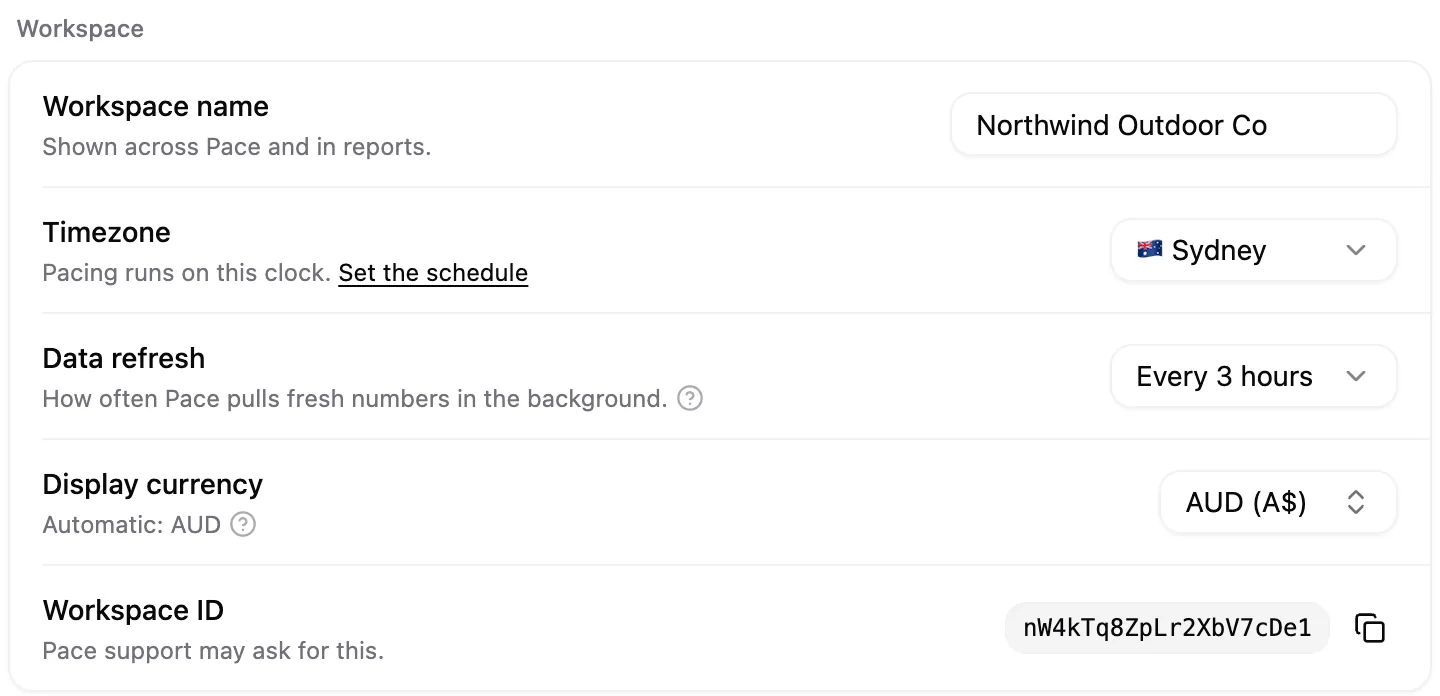
Run times follow the Timezone set for the workspace. To check it, open Settings, stay on the General tab and find Timezone in the Workspace card. Its description reads "Pacing runs on this clock", with a Set the schedule link back to the Intelligence tab.
Turn automated pacing off
Turn off Automated pacing to stop scheduled runs for the whole workspace. Your run times are kept and come back when you switch it on again. On Pro and above you can still run pacing yourself with the Pace button on an account or portfolio. See running pacing on demand.
If you see "no run time is selected"
This warning appears when Automated pacing is on but every run time is switched off:
Pacing is on, but no run time is selected. Turn on at least one run time so Pace knows when to adjust your budgets.
Pace has no time to run, so nothing happens on schedule. Switch on at least one run and the warning clears.
If you change plan, open the card and check your run times. Each plan has its own set of runs.
Note: An account's Active days don't change when Pace runs. They change how Pace divides your monthly budget, and runs still happen on days off.
If an account still didn't move after a run, work through why Pace skipped my account.