To pace a Google Ads budget evenly, keep resetting your daily budgets to what's left of the month divided by the days left. A daily budget you set once and leave alone will drift away from your monthly target, because Google treats it as an average, not a fixed limit.
Why a fixed daily budget drifts
Google's own help pages describe two rules for campaign budgets:
- On a single day, a campaign might spend up to twice its average daily budget, to take advantage of busy traffic.
- Over a month, Google charges no more than 30.4 times the average daily budget.
Both rules are about the daily budget you entered. Neither knows the monthly number you promised a client or your finance team. The monthly limit stops a campaign spending far past its budget, but nothing makes it reach your target.
So the month drifts. A busy first fortnight uses up the month's room early and leaves less for the end. A slow start leaves money unspent unless someone raises the budget.
Key terms
- Monthly target: the total you want the account to spend this month.
- Required run rate: the daily spend needed to finish on target. It's the budget left divided by the days left.
- Pace: how your spend so far compares with where an even month would be by now.
The manual method
You can pace by hand with one sum, repeated often:
- Check month-to-date spend for the account in Google Ads.
- Subtract it from your monthly target to get the budget left.
- Divide that by the days left in the month, including today.
- Split the result across your campaigns and update their daily budgets.
- Repeat every few days, or daily in the last week of the month.
It works, but it's slow, and the gaps between checks are where drift builds up. Each campaign also tends to spend a bit more or less than its budget, so the total rarely matches your sum exactly.
A worked example
These numbers are round and only for illustration.
Say your monthly target is $3,000 for a 30-day month. You set one campaign to $100 a day and leave it.
- The first 10 days are quiet and the campaign spends $600. An even month would be at $1,000 by now.
- That leaves $2,400 for 20 days, so the required run rate is now $120 a day, not $100.
- Leave the budget at $100 and the campaign heads for about $2,600, roughly $400 short. Google's monthly limit only caps spend at 30.4 times $100, about $3,040. It doesn't push you up to $3,000.
- Raise the budget to $120 now, keep re-checking, and the month can still land close to $3,000.
How Pace does it for you
Pace does that sum on every run and updates your Google Ads daily budgets itself. You set the Default monthly budget once, in Account Settings under Budget and pacing. Pace works out the required run rate from what's actually been spent and the days left.
On Google Ads it goes further than the manual method:
- It reads pace within the day. Pace counts today as the hours that have actually passed on the account's clock. A 6am run judges pace against those hours, not against a whole day already gone.
- It measures each campaign's delivery. Google often spends past a campaign's daily budget, most noticeably on small campaigns. Pace compares each campaign's actual spend with the budget it held, smooths that over the past week, and sets budgets for what Google will really spend. The adjustment is capped, and switched off in the first and last three days of the month, so the full budget still gets spent.
- It keeps the total near the run rate. If the campaigns together fall short of the required run rate, Pace raises them to meet it, never past your monthly budget. If they sit more than about 10% above it, Pace trims them back. Inside that band, it leaves them alone.
You can watch the result in the Budget and pacing section. The projection chart there, titled with the current month (for example, Projected November spend), shows spend so far, the even-pacing line and where the month is heading, marked On pace, Under or Over.
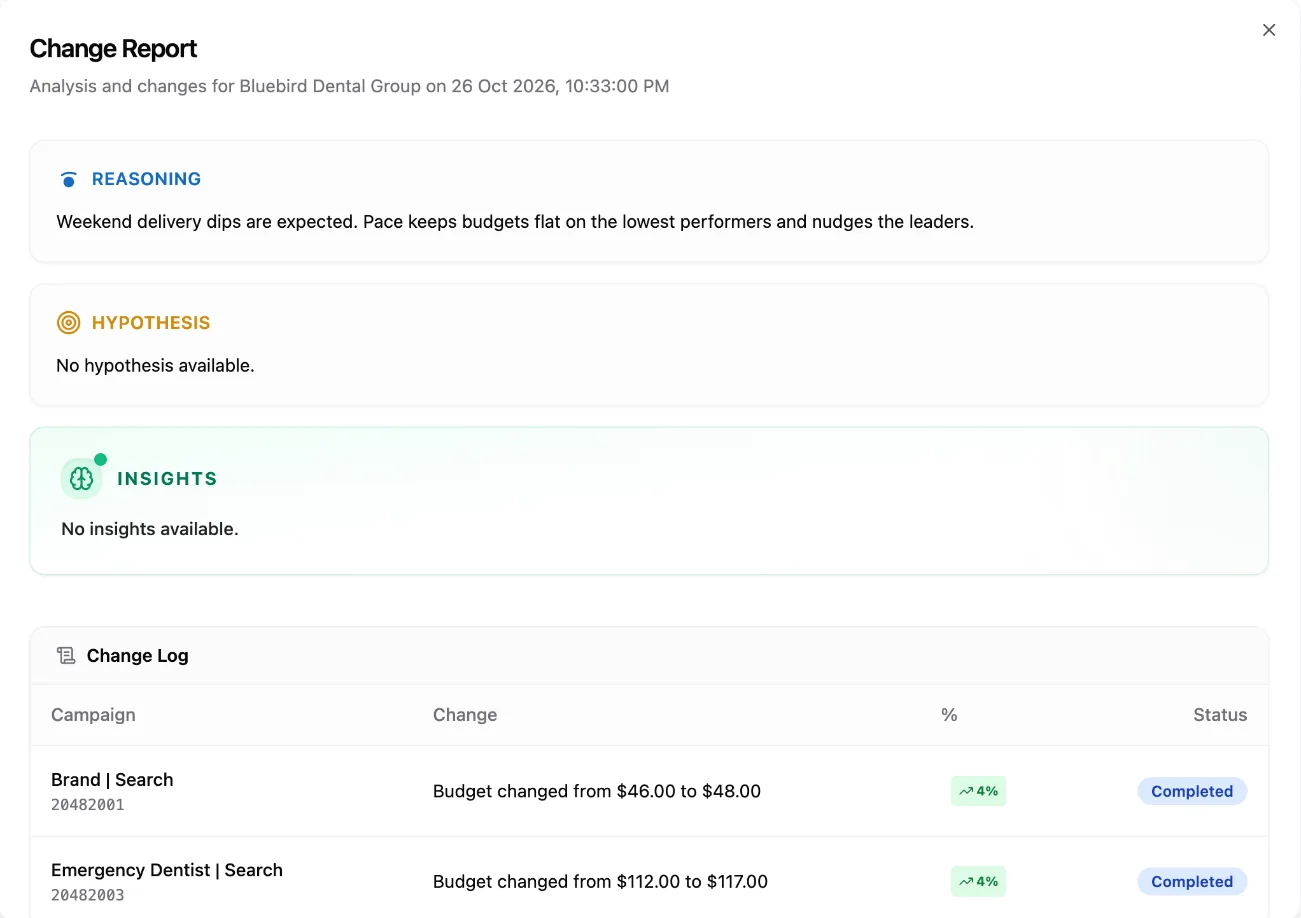
Every budget Pace changes appears under Changes in the top navigation. Open an entry to see the reasoning and a Change Log of each campaign's old and new budget. When Pace raised or trimmed budgets to hold the run rate, the entry says so.
Note: Your own limits still come first. On Pro plans and above, a minimum or maximum daily budget you set on a campaign holds on every run. See per-campaign budget limits.
For the full set of checks behind each change, read how Pace decides your budget changes. To see how pacing works on other ad platforms, read budget pacing across platforms.