Pace scores every audience segment and placement in your account for waste, ranks them worst-first, and applies the exclusions you pick straight to the ad platform. Open any account and go to Improvements, then Audiences.
Note: The analyzers are available on the Pro plan and above. Google Ads and Microsoft Ads accounts get Audience Improvements; Meta Ads accounts get the Audience & Placement Analyzer.
What they are
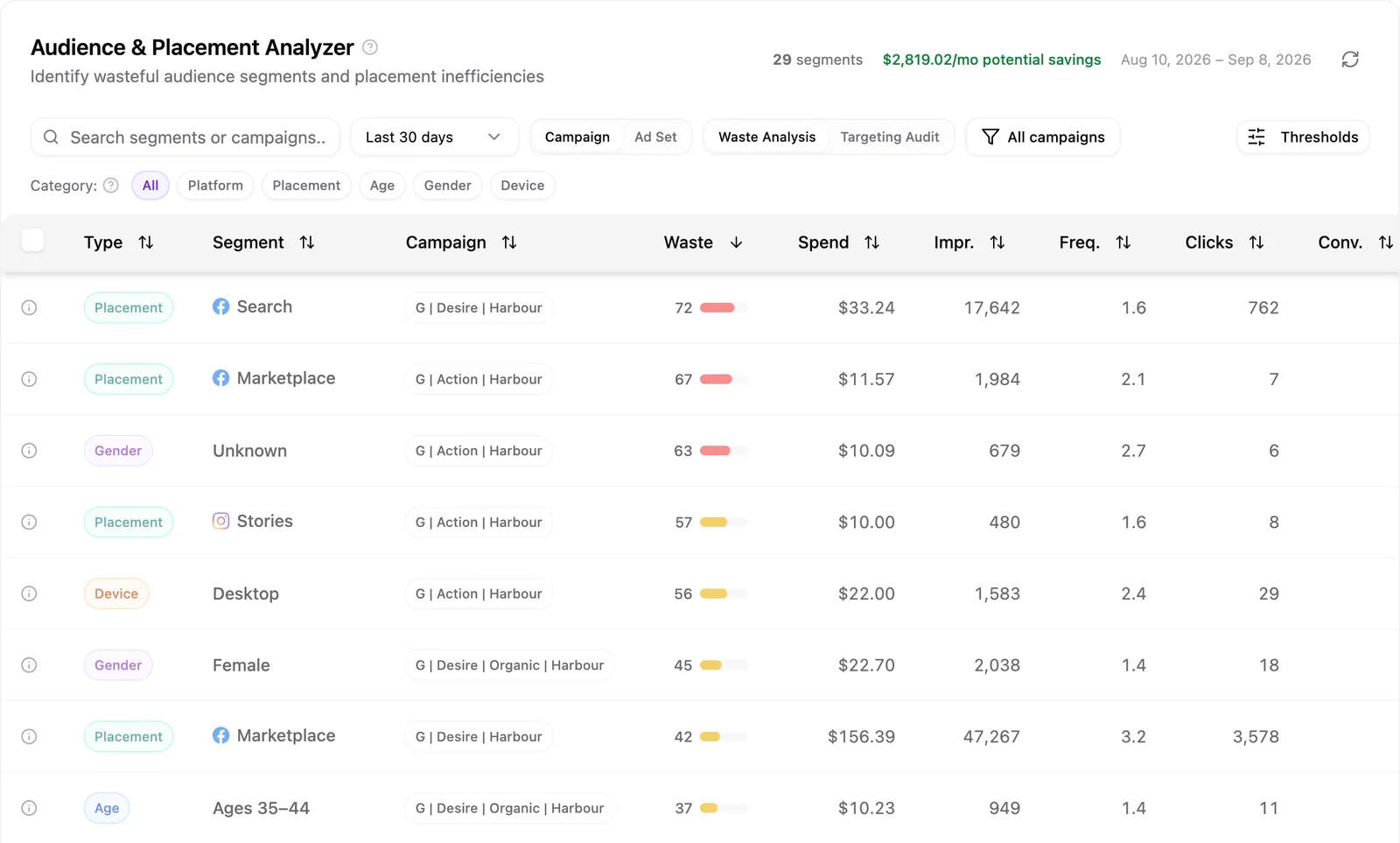
Both analyzers look for the same thing: slices of your targeting that spend money without earning it. Pace pulls the last 30, 90 or 180 days of performance, splits it by segment, and scores each segment 0 to 100 for waste with an estimated monthly saving beside it.
On Google Ads and Microsoft Ads the segments are age ranges, gender, income ranges and devices, plus network placements (Search Partners and Display Network expansion) on Google Ads Search campaigns. On Meta Ads they're platform (Facebook, Instagram, Audience Network, Messenger), placement, age, gender and device.
Why use them
- Cut the spend that earns nothing back, instead of trimming budgets across the board.
- Act on a finding without leaving Pace for the platform's own targeting screens.
- Keep an audit trail: every applied change lands in the account's Changes tab.
How the waste score works
Each segment is judged on four signals: cost per acquisition against the campaign average, spend with zero conversions, click-through rate, and conversion rate. The weighting adapts to how much conversion data the campaign has, so thin accounts aren't scored on noise.
Meta Ads goes further. Segments are compared against peers with the same optimisation goal, so a landing-page-views ad set is judged on cost per landing page view and a video ad set on cost per ThruPlay. Frequency feeds in too, pushing saturated placements up the table. Each verdict carries a confidence rating, explained in the tooltip.
Meta Ads accounts also get a Targeting Audit view beside the waste table. It flags structural issues: ad sets on automatic placements, a wide-open 18–65+ age range, no gender narrowing, or no retargeting audience.
Applying a change
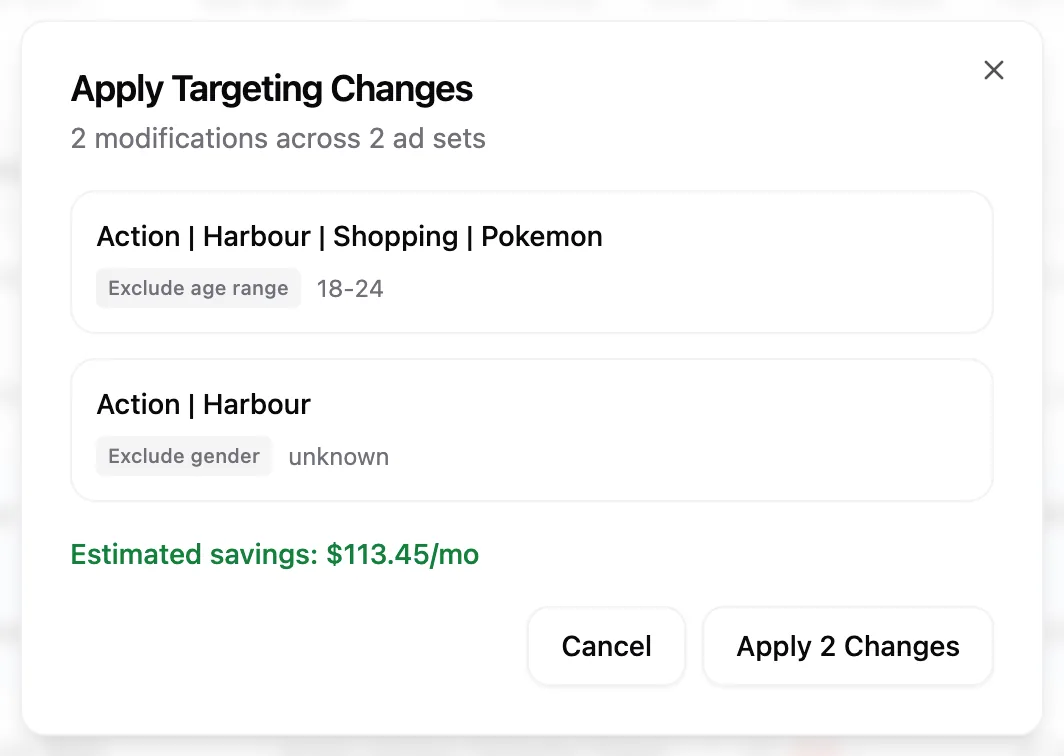
Tick the segments you want, then use the action bar at the bottom: Apply Exclusions on Google Ads and Microsoft Ads, Apply Changes on Meta Ads. A confirmation dialog lists every change, what it touches, and the total estimated saving before anything is written.
The dialog also carries the caveats: network opt-outs are campaign-wide and change traffic volume immediately, and device exclusions apply a -100% bid adjustment rather than a hard block. Segments you've already excluded appear dimmed and can't be selected twice.
When to use them
Run them when spend is steady but efficiency is drifting, or as the first stop on an account you've inherited. The 180-day window exists for smaller-spend accounts, where 90 days doesn't carry enough volume for a confident call.
Limitations
- Google Ads network placements cover Search campaigns only, not Performance Max, Video, Demand Gen, Shopping, Display or Smart campaigns.
- Microsoft Ads doesn't offer income ranges or network placements.
- Some Meta Ads rows can't be actioned — ad sets on Advantage+ placements, or campaign-level rows where targeting lives on the ad set below. They show an info icon instead of a checkbox and stay in the table as reporting.
- Safety rules stop you removing every platform, position or gender from an ad set.
To edit targeting by hand, see how to edit a Google Ads campaign.