Every account and every portfolio has a Notes tab: a shared notebook your whole workspace can read, edit and search. Use it for context that doesn't belong in a report: client quirks, test plans, what you agreed on the last call.
Note: The notebook is available on the Pro plan and above. On Basic, the Notes tab shows an upgrade prompt instead.
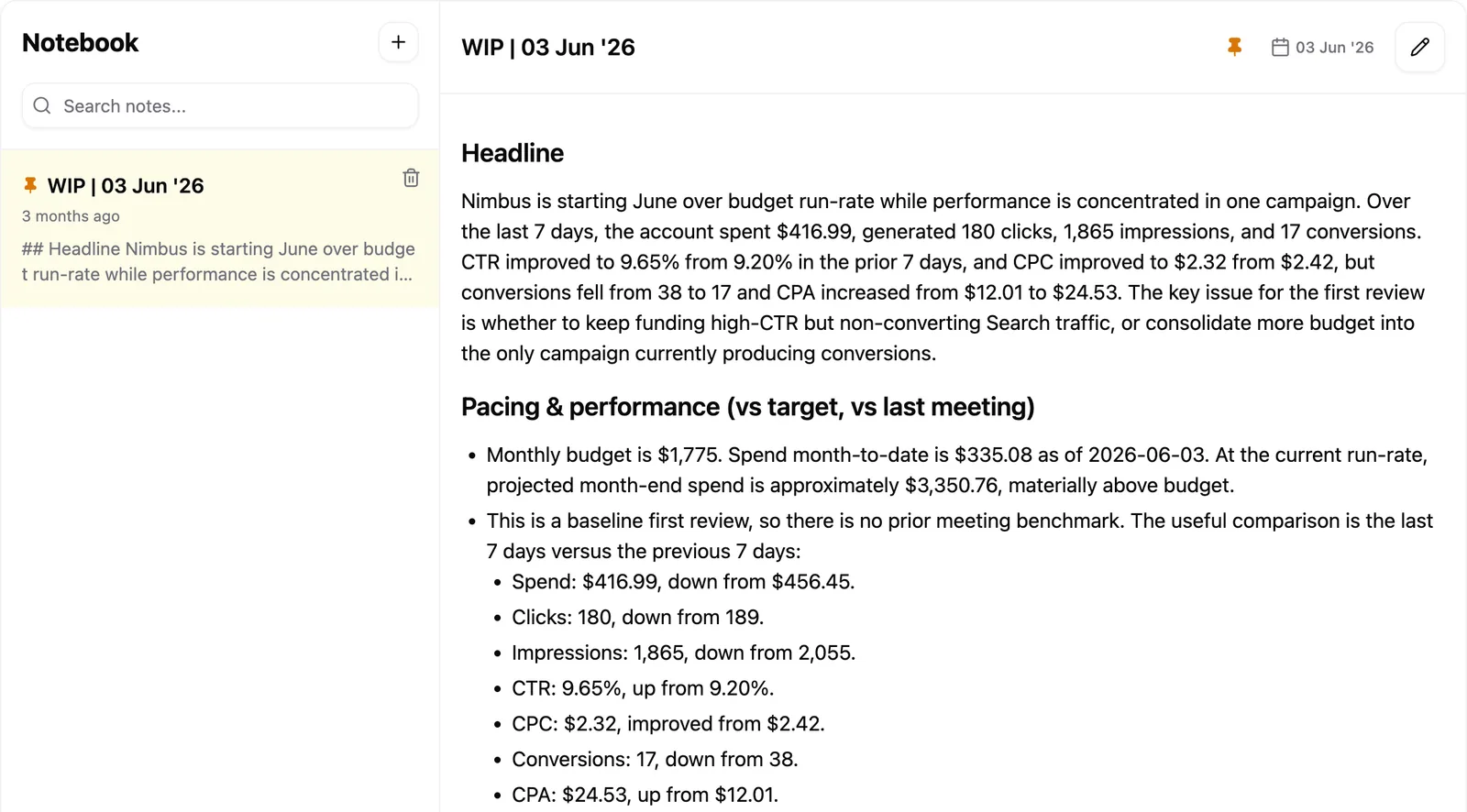
Write a note
- Open an account or portfolio and select the Notes tab.
- Click the + button above the note list and choose New note.
- Give the note a title, then write in the body below it.
- Type
@anywhere in the note to mention a teammate. They get a notification pointing back at the note. - Click Save.
The formatting toolbar covers bold, italic, underline, two heading levels and body text, and you can drop images straight into the body. Notes sort by most recently updated, and the search box above the list matches on both titles and body text.
Only one person edits a note at a time. When you click the pencil icon, the note locks to you, and everyone else sees it read-only with a banner naming who's in there. Saving or cancelling releases it.
Warning: Deleting a note with the bin icon is permanent, and it deletes it for everyone in the workspace.
Draft a meeting agenda
Before a client call, Pace can write the agenda for you from the account's own recent activity.
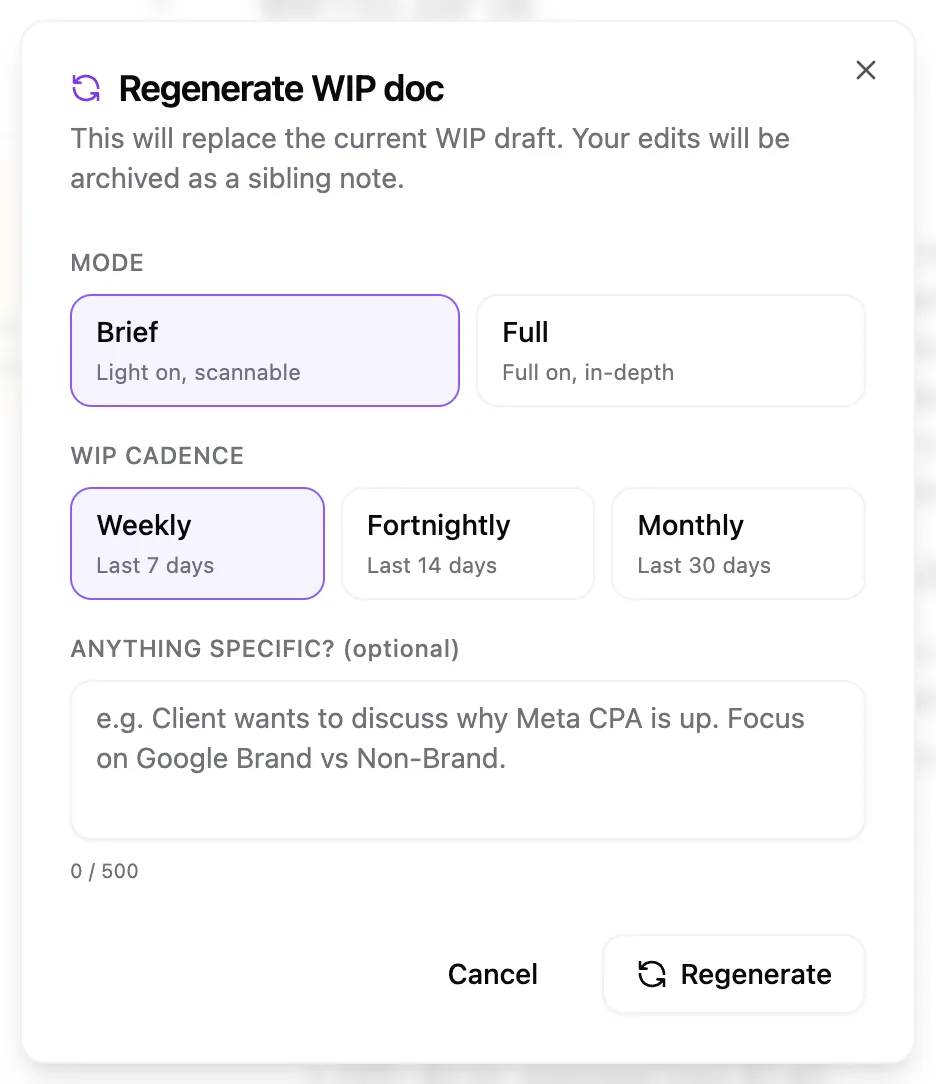
- Click the + button above the note list and choose Generate WIP doc.
- Pick a mode: Brief for something scannable, or Full for the in-depth version.
- Pick a WIP cadence of Weekly, Fortnightly or Monthly. That sets how far back Pace looks: 7, 14 or 30 days.
- Under Anything specific?, add up to 500 characters steering what the meeting should cover. This is optional.
- Click Generate.
The agenda writes itself into a new note as it goes, with a panel listing what Pace is reading — performance, campaign mix, recent changes, prior insights. It takes a minute or two. Close the dialog and it keeps running; click Stop to cancel it.
Pace reads the previous agenda for the same account or portfolio each time, so follow-ups carry forward rather than starting cold. Regenerating an agenda you've already edited saves your edited version as a separate note first, so nothing gets overwritten.
After it's generated
Edit the draft like any other note. The pin icon in the note header marks any note as a meeting agenda and adds a meeting date you can change from the calendar. Pinned notes carry a pin in the list so they're easy to find.
You can generate two agendas per account or portfolio each hour, and twenty across the workspace each day. If an account is too new to have meaningful activity yet, Pace tells you rather than inventing an agenda.