Any saved client report can live on your own site as an interactive slide viewer, so clients read it in your portal instead of opening a PDF attachment. Pace generates an <iframe> snippet you paste wherever you want the report to appear.
Before you start
Embedding is part of Client Reports, so it's included on the Pro, One, and Enterprise plans. You need a report that's already been built and saved, and somewhere you can paste HTML on your site.
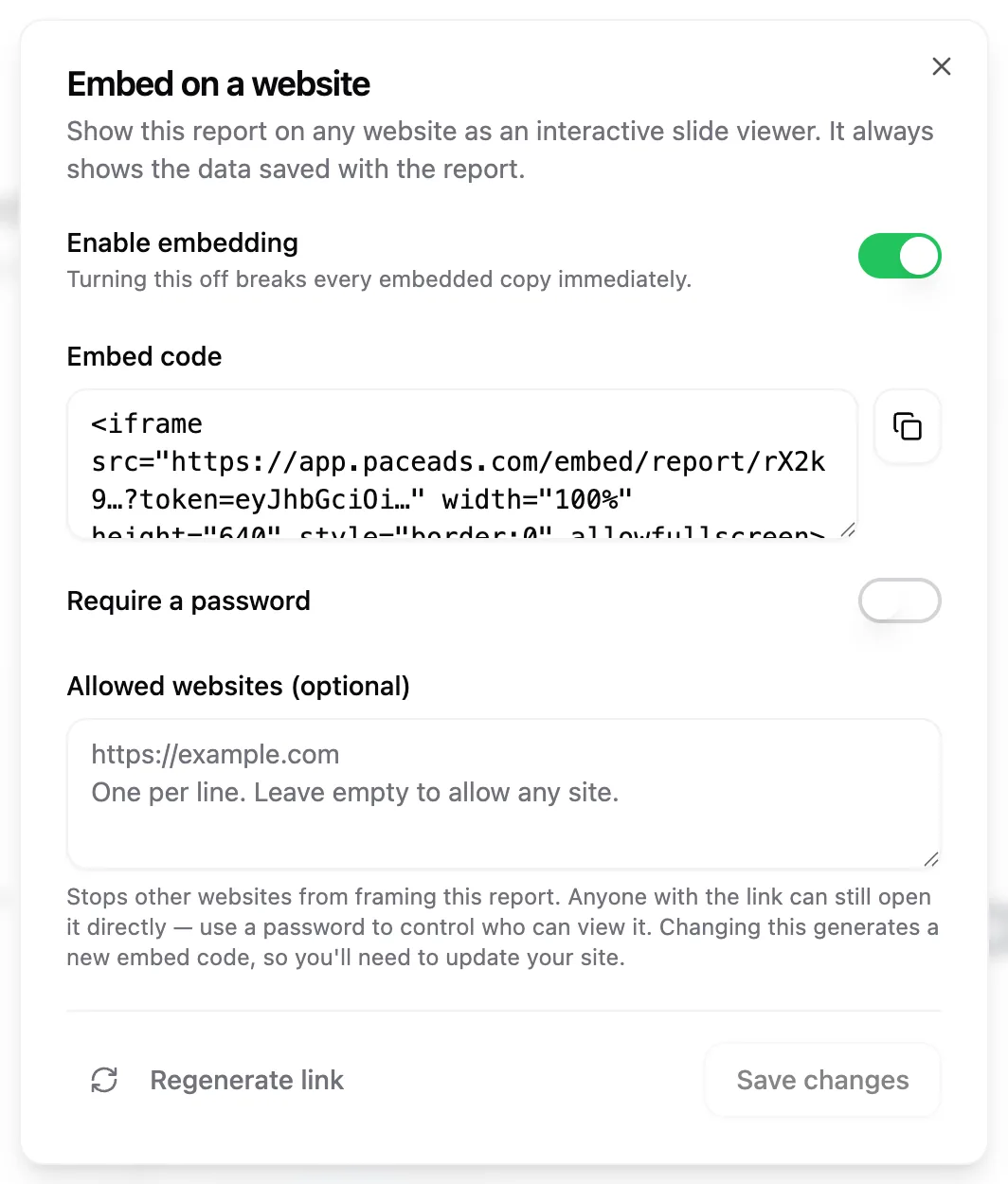
Turn on the embed
- Open the account, go to the Reports tab, and open the report you want to publish.
- Click the ··· menu in the report toolbar and choose Embed on a website.
- Switch on Enable embedding. The Embed code box appears with your snippet in it.
- Click the copy button beside the box, then paste the snippet into your site's HTML.
That's the whole minimum path. The snippet sizes itself to whatever width your page gives it, so it fits a narrow sidebar or a full-width section without editing.
Add a password
- In the same dialog, switch on Require a password.
- Type a password of at least 6 characters.
- Click Save changes.
Readers now see a lock screen inside the embed and enter the password once per browser session. This is the control that decides who can read the report. Without it, anyone holding the link can open it.
Limit which websites can show it
Enter one origin per line in Allowed websites (optional), like https://example.com, then click Save changes. You can list up to 10. Leave the box empty and any site can frame the report.
Note: Changing the allowed websites generates a new embed code, so copy the fresh snippet into your site afterwards.
What your readers see
The report opens as a slide viewer. Readers move between pages by clicking the arrows or using the left and right arrow keys, and a counter shows where they are in the deck. It always renders in light mode, whatever theme their browser prefers.
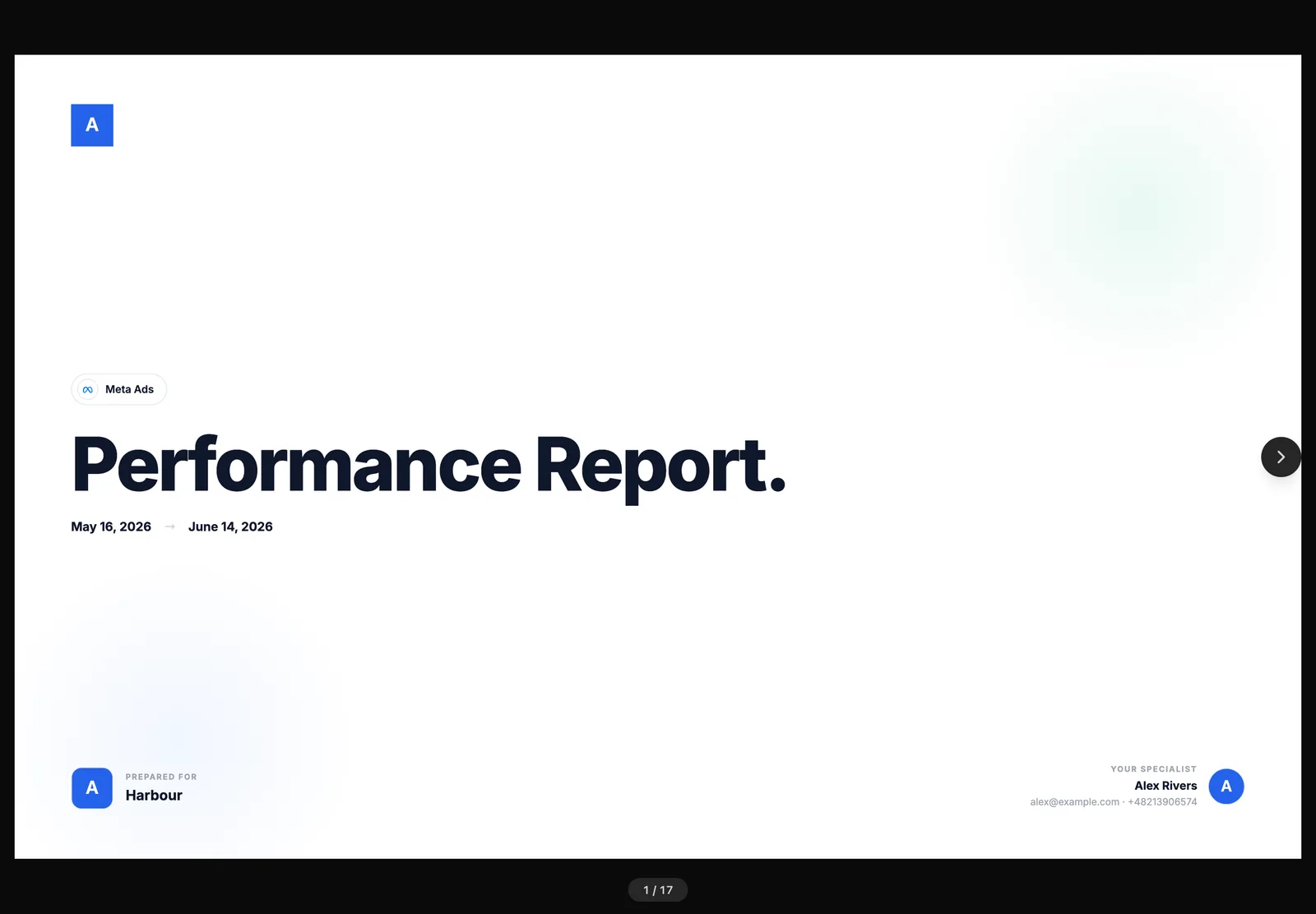
The embed shows the data saved with the report, the same figures as its PDF. To update what readers see, open the report, choose Refresh data from the ··· menu, and save.
Take an embed back down
Switch Enable embedding off, or click Regenerate link, and every snippet you've already shared stops rendering straight away. Changing the password or the allowed-website list also ends any session a reader already has open. Regenerating leaves embedding on, so paste the new snippet into your site to bring it back.
Warning: There's no grace period. Turning the embed off breaks the copy on your live site immediately, so have the replacement snippet ready if you're rotating it.
If the embed shows nothing on your page, the usual cause is an old snippet: copy the current Embed code from the dialog and replace it.