Every alert Pace sends lands in the app itself, whether or not you've connected Slack or added an email recipient. In-app delivery is on by default for every alert type, so a brand-new workspace sees its alerts from day one.
Why it's useful
- Nothing to configure. The bell works on its own, with no Slack workspace and no recipient list.
- A full history per account. Every alert Pace has sent about one account sits on that account's own page.
- A mute you control. Silence one alert type on one account without touching pacing, Findings, or your weekly report.
Where your alerts appear
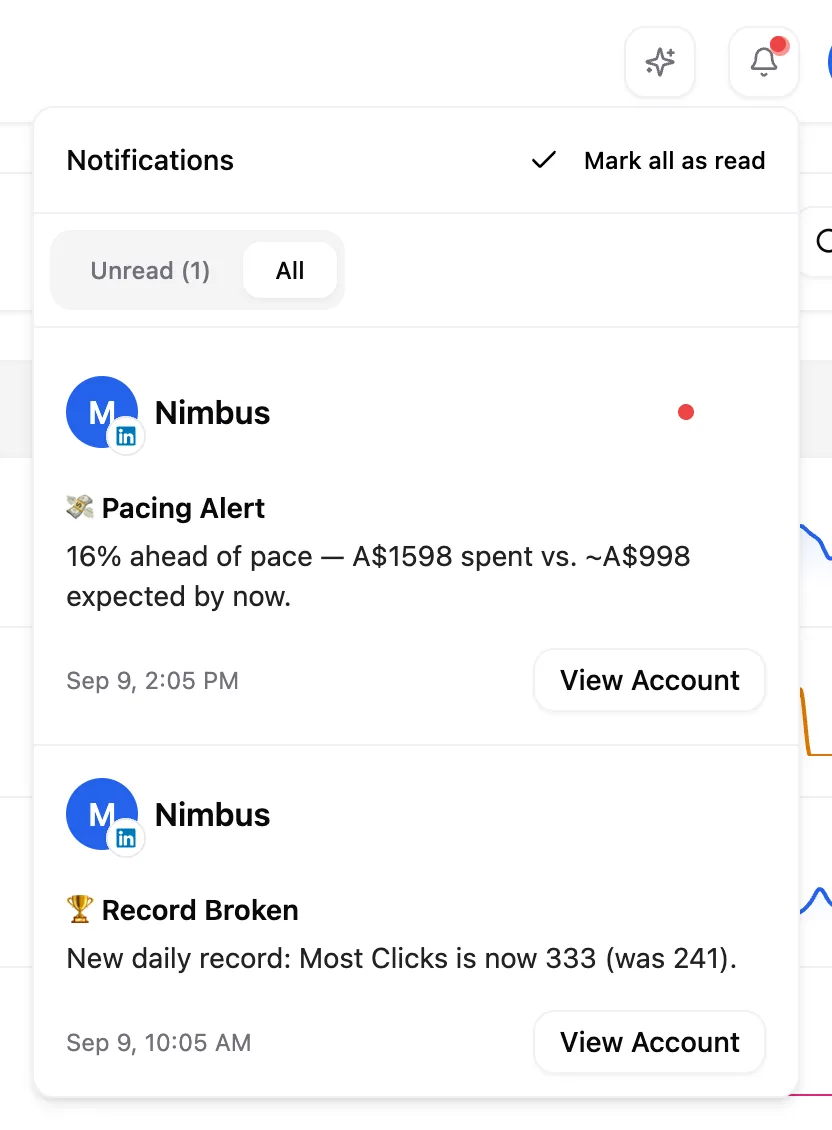
The bell sits in the top bar next to Findings, with a red count beside it when something is unread. Click it to open your inbox on the Alerts tab. Switch to Findings at the top of the panel without closing it. Use Unread or All to filter, and Mark all as read to clear the tab you're on. Alerts are grouped under Today, Yesterday and Earlier, and each shows how long ago it arrived; hover the time for the exact date. Click any alert to mark it read and jump to whatever it's about.
Scroll far enough and the header shrinks to a pill. The same feed lives there as the Alerts tab, beside Menu and Findings, each carrying its own unread count.
Your home page carries an Alerts card listing the latest alerts across every account.
Findings aren't alerts, though they share the same panel on their own tab. See what Pace flags automatically for you for how those work.
One account's alert history
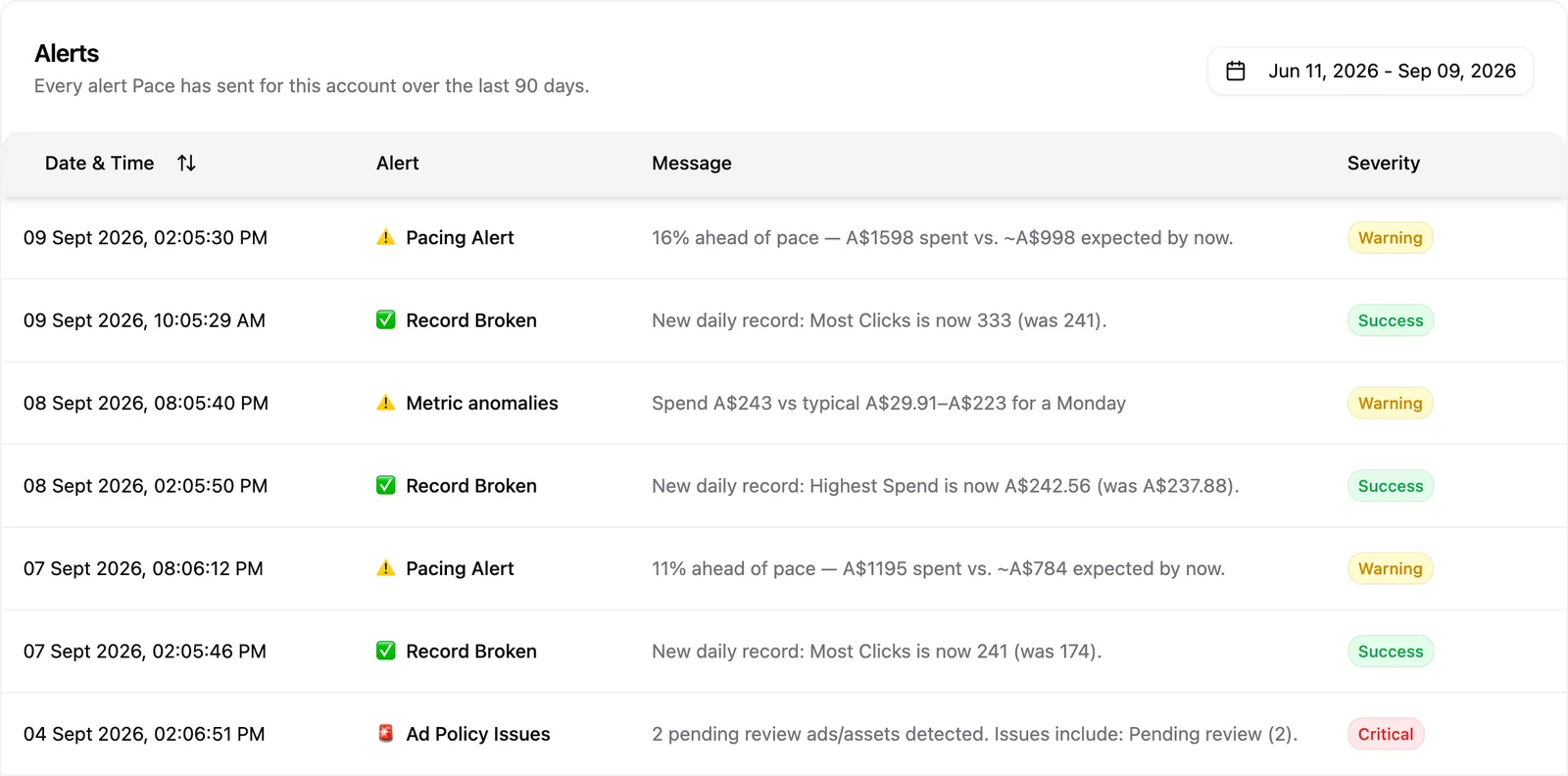
Open an account and choose Alerts in the sidebar, directly under Findings. It lists every alert Pace has sent for that account over the last 90 days, with columns for Date & Time (sortable oldest or newest first), Alert, Message, and Severity. The date filter starts on Last 30 days (including today) and shares its range with the Changes and Findings tabs. Widen it to see older alerts, set your rows per page, and click a row for the full message, the platform it came from, and an Open button that takes you to what triggered it. This tab is on every plan and every platform.
Muting one alert type on one account
Hover an alert row in the bell, on the Alerts tab, or in the Alerts card on Home, open its three-dot menu, and choose Mute … alerts for this account.

A mute stops that alert type everywhere it would have gone: the bell, Slack, and email. Every other alert type for the account keeps firing, and the same alert type on other accounts is untouched. There's no timer: a mute holds until you turn it back on.
Muted alerts stay in the list, dimmed, with a Muted pill in place of the severity chip. Click the pill to see who muted it and when, then hit Reactivate. Each account's Notifications settings list the alert types muted for it. Muting is on every plan.
Note: A mute silences the notification, never the automation. Pacing, overspend enforcement, Findings, and the weekly report all carry on exactly as before.
Limits
- Alerts age out after 90 days, in the bell and on the Alerts tab alike.
- A few notices have no in-app switch to turn off: billing spend-limit warnings, AI insight notices, and the pacing-run summary.
- The bell updates in real time. Only Slack and email get batched into your daily digest.
To choose which alerts fire and where else they go, see how to set up alerts and alert types explained.