Search Lens tells you which words in your search terms are burning budget, then blocks them as negative keywords (the terms you tell the platform never to match) without you leaving Pace. You'll find it on any Google Ads or Microsoft Ads account under Improvements → Search Lens.
Why use it
- Read thousands of queries as a few dozen patterns instead of scrolling a raw report.
- See an estimated monthly saving beside every pattern before you exclude anything.
- Add negatives to specific campaigns or to a shared list, from the same dialog.
How it works
Pace reads your search terms report and breaks every query into n-grams: the one, two and three-word fragments that queries share. Each pattern gets a waste score out of 100, a Problem badge (Wasted Spend, Low Relevance, Inefficient, Noise or Mixed), and a Safety badge (Safe, Review or Hist. Converting). Safety compares 30, 45 and 90-day windows, so a pattern that converts seasonally never reads as safe to block.
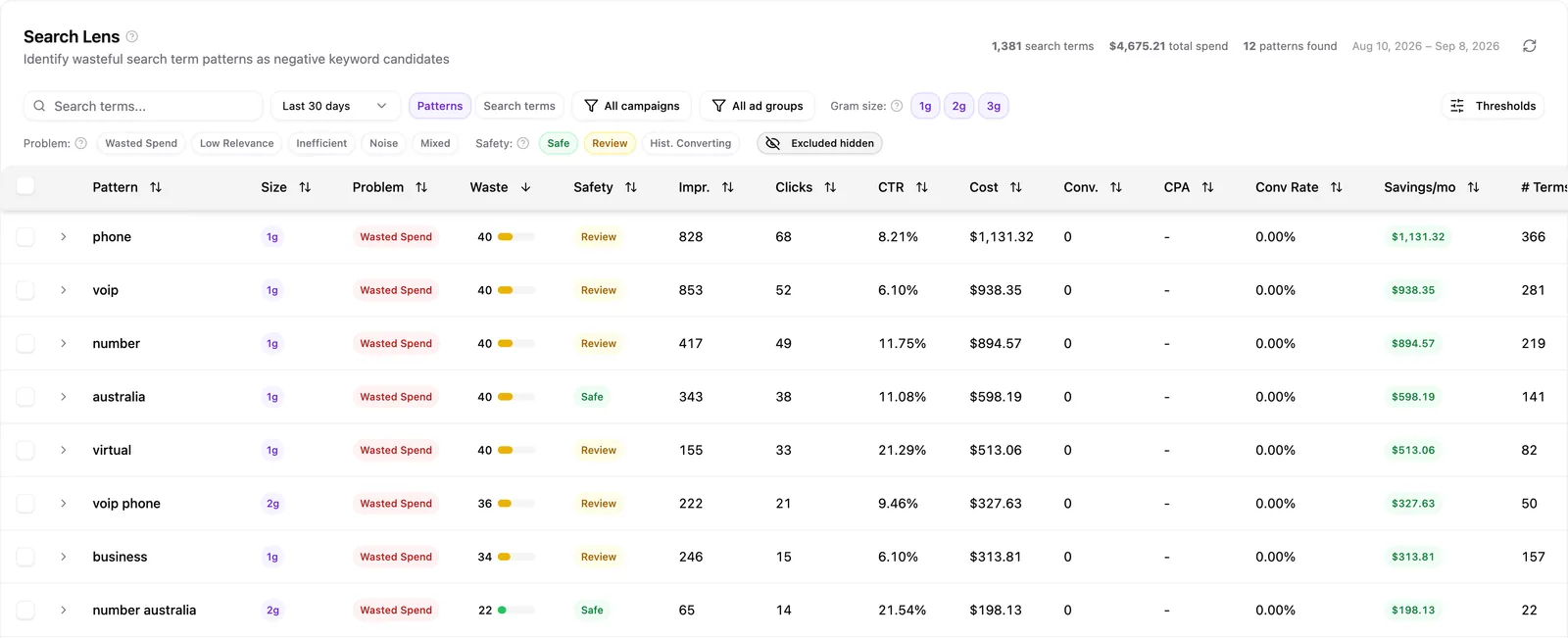
Expand any row to see the individual search terms behind the pattern. Tick patterns, terms, or both, and an action bar appears at the bottom of the screen with Add as Negatives.
Narrowing what you're looking at
Choose Last 30 days, Last 90 days or Last 180 days from the date picker. Filter to one or more campaigns, then to ad groups; the ad group list only offers ad groups inside the campaigns you picked. Gram size buttons switch between one, two and three-word patterns, and Thresholds sets minimums for impressions, spend, clicks and waste score.
Filters scope the whole view. Pace recalculates every pattern's metrics, the totals row and the drill-down over your selection.
Adding negatives
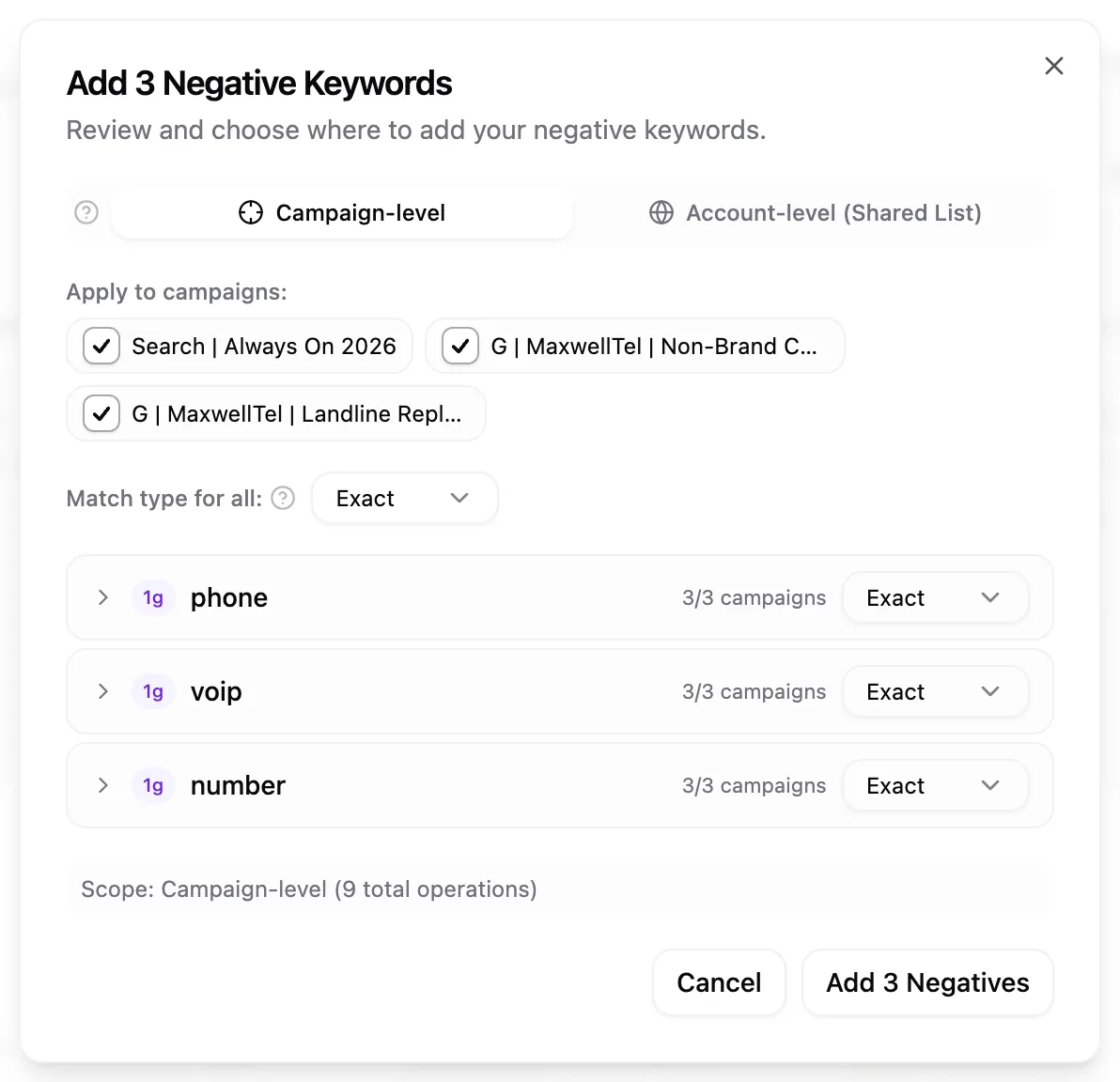
The dialog asks where the negatives go: Campaign-level, which blocks only in the campaigns you tick, or Account-level (Shared List), which blocks everywhere. Set one match type for the batch (Exact, Phrase or Broad), or override any single keyword. Terms the platform would reject are flagged with the reason before you submit, and anything already blocked carries an Already excluded badge and can't be selected twice.
The raw report
Google Ads accounts also get a Search terms view, toggled beside the date range. It lists every query that triggered an ad with its match type, campaign, ad group, impressions, clicks, cost and conversions, sorted by highest spend. It's read-only on purpose: use it to spot problems, then add the negatives from Patterns.
Limitations
- The Search terms view is Google Ads only.
- Account-level (Shared List) needs a shared negative keyword list that already exists in Google Ads or Microsoft Ads.
- On accounts with enormous term counts, filtered figures come from the 10,000 highest-spend terms, and a note under the table says so.
Note: Search Lens is available on the Pro plan and above. Results are cached for six hours, so repeat visits load instantly. The Refresh button in the card header pulls fresh data whenever you want it.
See also
Once you've decided what to block, the Google Ads campaign editor manages keywords and campaign-level negatives directly. For the anomalies Pace surfaces without you going looking, see what Pace flags automatically for you.