Click the eye icon next to any Google Ads or Microsoft Ads search ad to see it as a results card: a Google card for Google Ads, a Bing card for Microsoft Ads. A second tab lists every headline and description with its character count, so you can check an ad without opening the ad platform.
Open the preview
- Open the account and click the Ads tab. To narrow the list, click into a campaign and ad group first.
- Find the search ad you want. In the ad cell, a small Sponsored label (Google Ads) or Ad label (Microsoft Ads) marks it as a search ad.
- Click the eye icon on the right of the ad cell. The preview opens on the Preview tab.
- Click Assets to see the full breakdown. The number beside it is the total count of headlines and descriptions.
Ads without headlines open a basic Ad Creative Preview instead, and Shopping ads have no preview.
What the Preview tab shows
The card follows the platform's own layout:
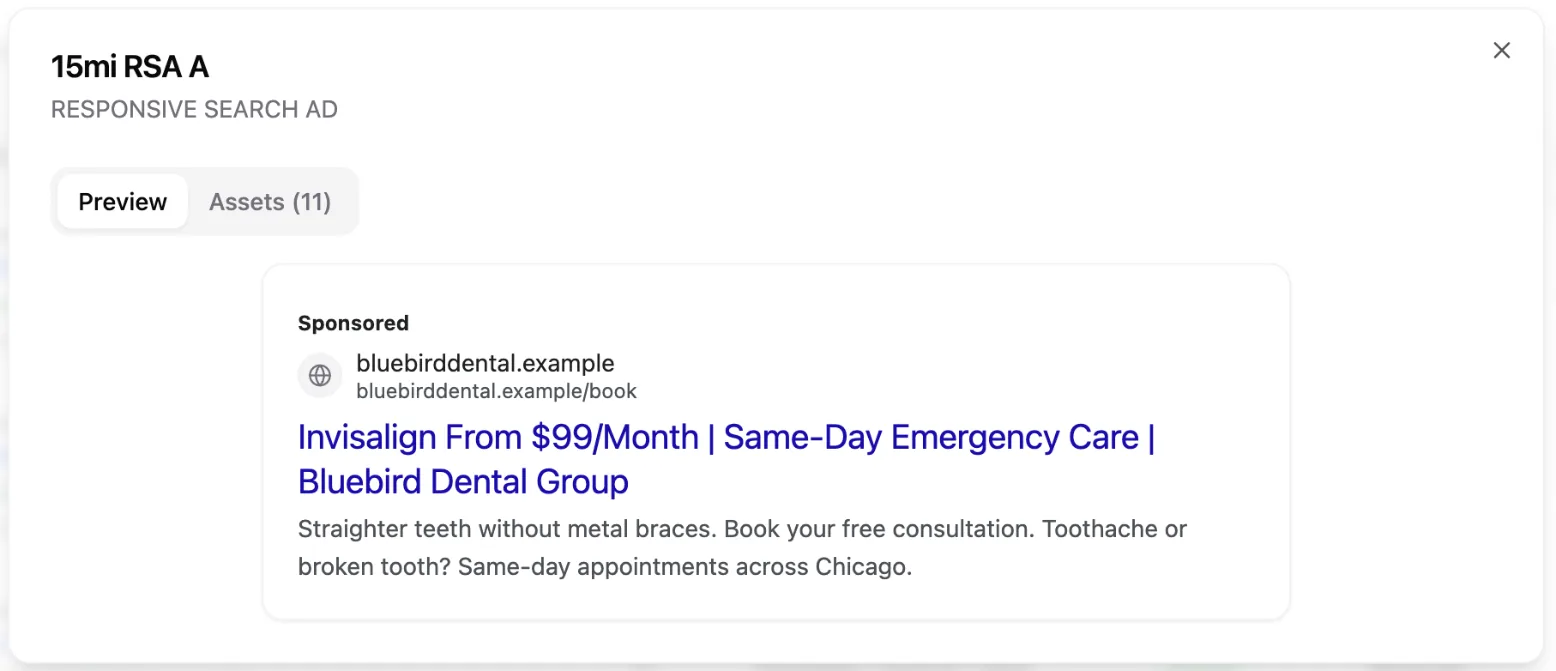
- Google Ads: a Sponsored label, your domain and display URL, the headlines in blue joined by a pipe ( | ), and the descriptions underneath.
- Microsoft Ads: a green Ad badge beside a green display URL, then the headlines and descriptions in Bing's styling.
Both cards show up to three headlines and two descriptions. Pinned assets go in the position you pinned them to. Pace fills the remaining slots with your other assets in the order the ad lists them. Google and Bing mix and match responsive search ad assets when they serve, so treat the card as one likely combination rather than the only one. A grey globe stands in for your site's icon.
What the Assets tab shows
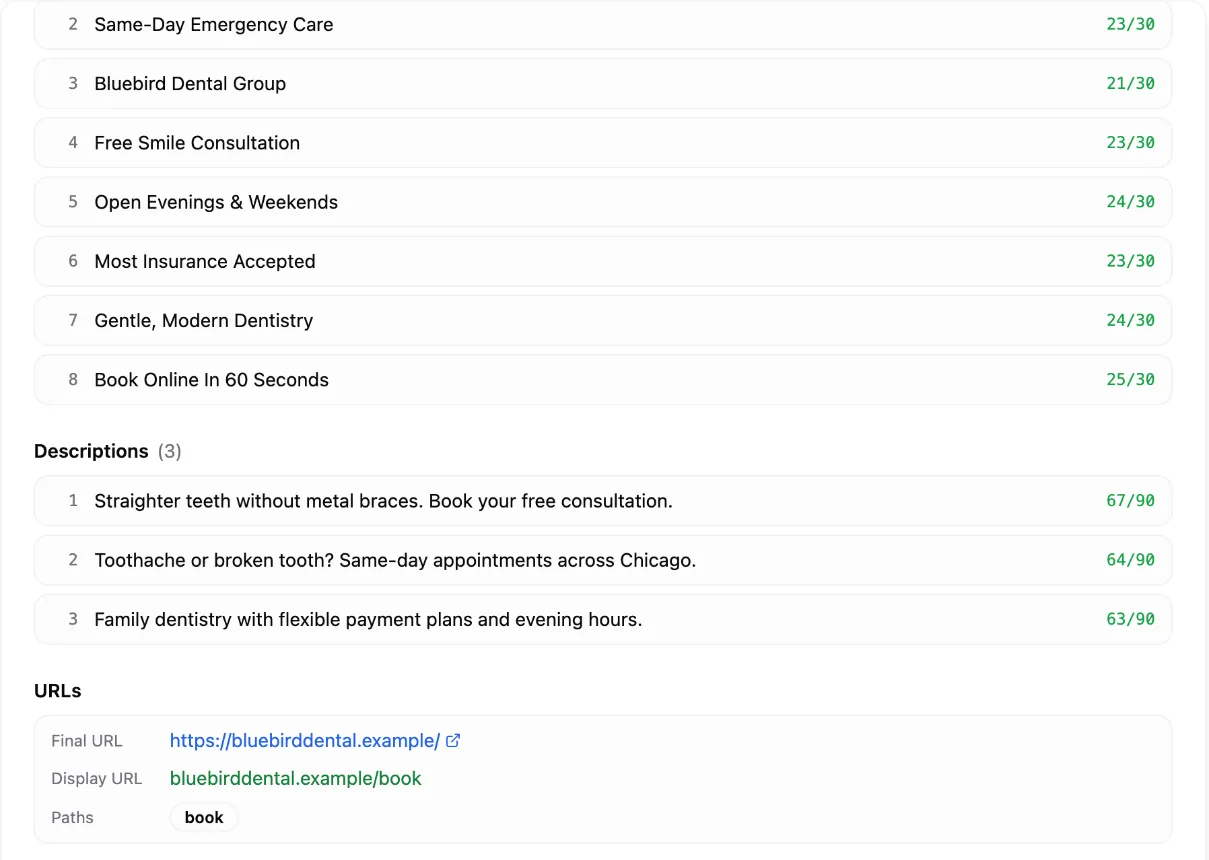
- Headlines: each headline, numbered, with a count against the 30-character limit.
- Descriptions: each description with a count against the 90-character limit.
- URLs: the Final URL (opens in a new tab), the Display URL, and your Paths as separate tags when you've set them.
- Ad Info: the ad type, its status, and the ad group and campaign it belongs to.
Counts are colour-coded. Green means you're comfortably inside the limit, amber means you're within the last 10% of it, and red means you're over. A pinned asset carries a pin icon with its slot, for example Position 1 (Headline 1).
The display URL is your domain plus the two path fields from the ad. If you haven't set any paths, Pace builds it from the first two folders of your final URL instead.
Performance Max asset groups
Performance Max asset groups appear in the Ads table too, and their eye icon opens the same preview built from the group's headlines and descriptions. The card carries an amber Performance Max: Search preview approximation label. Performance Max serves on Search, Display, YouTube and other Google surfaces, so the Search card shows only one of the places those assets can appear.
Other places to preview
- Creative Lens (Google Ads): on the Improvements tab, expand any Search ad and click SERP Preview to open the same preview. See how Creative Lens ranks your ads.
- LinkedIn Ads: the eye icon on a LinkedIn ad shows LinkedIn's own rendering of the post. If LinkedIn doesn't return one, Pace shows a feed-style mock-up built from the ad's text and image. LinkedIn previews have no Assets tab.
Note: The preview is read-only. To change headlines, descriptions or paths, edit the ad in Google Ads or Microsoft Ads, or read how to edit a Google Ads campaign in Pace.