What Are Google Shopping Ads?
Google Shopping ads are product-based ads that show an image, title, price, store name, and optional ratings directly in search results. Unlike text ads where you write copy and bid on keywords, Shopping ads are generated from your product data feed. You upload structured product information to Google Merchant Center, and Google's algorithm matches that data to relevant search queries.
The mental model is different. With Search ads, you pick the keywords. With Shopping ads, Google picks the queries based on your product titles, descriptions, categories, and attributes. You do not bid on keywords. You bid at the product or product group level, and Google works out relevance from your feed data.
Shopping ads show up in a few places. The most visible is the product carousel at the top of Google Search, where up to eight products display horizontally with images and prices. They also appear in the dedicated Google Shopping tab, where users can browse, filter, and compare products in a grid. Past those, Shopping ads serve on Google Images, YouTube, the Google Display Network, and partner sites.
For ecommerce advertisers, Shopping ads consistently beat text ads on conversion rate and cost per acquisition. The reason is simple. Shoppers see the product image, the exact price, and the store name before they click, which filters out low-intent traffic. Someone who clicks a Shopping ad already knows what the product looks like and what it costs. They are much further down the funnel than someone clicking a generic text ad.
Google also offers free product listings through the organic Shopping tab. These unpaid placements use the same Merchant Center feed and sit alongside paid results. Free listings drive less traffic than paid Shopping ads, but they cost nothing and they make a clean product feed even more worth the effort.
How to Set Up a Google Shopping Campaign
Setting up a Shopping campaign touches more systems than a Search campaign. The first launch takes longer, but once the foundation is in place, scaling gets much easier. Here is the process.
Step 1: Set up Google Merchant Center and upload your product feed. Merchant Center is where your product data lives. Create an account, verify your website, and upload a feed with the required attributes: product ID, title, description, link, image link, availability, price, brand, GTIN (Global Trade Item Number), and condition. You can submit feeds manually via spreadsheet, through an API, or using a feed management tool. If you run more than a couple of ecommerce clients, a feed platform like DataFeedWatch or Feedonomics will save you days of manual cleanup every month.
Step 2: Link Merchant Center to Google Ads. In Merchant Center, head to the linked accounts section and connect your Google Ads account. Without this link, Shopping campaigns will not run at all. For agencies, double-check that each client's Merchant Center is linked to the right Google Ads account. This trips people up constantly when multiple brands sit under one MCC.
Step 3: Choose your campaign type. Two options: Standard Shopping and Performance Max. Standard Shopping gives you direct control over bidding, product group segmentation, negative keywords, and search query reporting. Performance Max hands the wheel to Google's automation, serving Shopping ads alongside Search, Display, YouTube, and more, but with much less granular control.
For agencies, the call usually comes down to volume and control. Standard Shopping wins when you need tight control over spend by product, query-level data for reporting, and campaign priorities for query funnelling. Performance Max wins when the client has solid creative assets, 30+ conversions a month, and the brief is "maximise revenue" rather than "control product-level bids." Most mature accounts run both. Standard Shopping for high-margin hero products, PMax for broader catalogue coverage.
Step 4: Structure your product groups. Product groups decide how your bids apply across the catalogue. The default is a single "All products" group with one bid. That gives you zero control. Break the catalogue into meaningful segments. The most useful splits are brand (your own vs. third-party), product category (electronics, apparel, accessories), price range (under $50, $50-$150, $150+), or margin tier via custom labels. Custom labels are the strongest tool here because they let you classify products by business logic Google does not natively understand: margin percentage, clearance status, seasonal relevance.
Step 5: Set your bidding strategy and budget. For Standard Shopping, start with Manual CPC or Enhanced CPC if you want direct bid control. Once you have 30+ conversions per month, move to Target ROAS so Google can optimise bids toward your revenue target. For new product launches where conversion data is thin, Maximise Clicks is a fine starting strategy to gather data. Set your daily budget at the monthly target divided by 30.4, and watch pacing closely for the first two weeks.
For agencies, feed quality decides more than anything else in Shopping campaigns. A feed with vague titles, missing GTINs, and low-resolution images will underperform no matter how well you optimise bids and budgets. Garbage in, garbage out. Spend the time up front on a clean feed and your performance reflects that investment from day one.
Performance Max vs Standard Shopping: Which Should You Run?
Step 3 above gives you the short version. Because this is the decision agencies get wrong most often, it deserves its own section.
Run Standard Shopping when any of these four apply:
- The client wants query-level reporting. Standard Shopping gives you the full search terms report. Performance Max is far more locked down, and explaining to a client why you cannot show them which searches drove their sales is an awkward conversation.
- Conversion volume is under about 30 a month. Below that line the automation has too little signal to optimise against, and you are handing the wheel to a driver who cannot see the road.
- Margins vary widely across the catalogue. Product groups, priority tiers, and custom labels let you bid clearance stock differently from hero products. That control is exactly what you give up with PMax.
- The brief is a fixed monthly budget. Standard Shopping spends more predictably. PMax chases conversions across Search, Display, and YouTube, and holding it to a hard number takes daily attention.
Run Performance Max when the opposite holds: conversion volume above the 30-a-month line, decent creative assets (images and video, since PMax serves across YouTube and Display), a catalogue where per-product bid control matters less than coverage, and a brief that says grow revenue rather than control every dollar. On accounts like that, the extra surfaces PMax reaches are worth the control you hand over.
On mature accounts the answer is usually both: Standard Shopping takes the high-margin hero products where control pays for itself, and PMax covers the rest of the catalogue. The budget allocation section further down covers the cannibalisation risk that comes with running the pair.
Whichever structure you run, Google's Recommendations tab will keep generating suggestions against it, and the pending ones sit against your optimisation score until you apply or dismiss them. Clients see that number and ask about it. Our guide on what the optimisation score actually measures explains why a controlled account at 75% is usually healthier than a hands-off account at 95%.
Google Shopping Ads Examples
Knowing what Shopping ads look like in practice helps you optimise for the formats that actually matter. They show up differently depending on the surface.
Product listing ads in the search carousel. The most common format is the horizontal product carousel at the top of Google Search for commercial queries. Each listing shows a product image, title, price, store name, and optionally a star rating and promo annotation. For a query like "wireless noise cancelling headphones," you might see eight products from different retailers ranging from $150 to $400. The ads that win clicks here have crisp product images on clean backgrounds, titles that match what the user searched for, competitive pricing, and visible star ratings. A listing for "Sony WH-1000XM5 Wireless Noise Cancelling Headphones, Black" at $348 with 4.7 stars will out-click "Headphones Electronics Audio" at $399 with no rating, every time.
Shopping ads in the Google Shopping tab. When users click the "Shopping" tab, they see a larger grid view with more products visible at once. The format gives each listing more visual room: larger images and extra details like shipping, return policies, and store trustworthiness indicators. Users in the Shopping tab are actively comparing products, so pricing and imagery matter even more. The surface also supports product filters (price range, brand, ratings, nearby stores), which means your feed attributes decide whether your products even show up for filtered searches.
Free product listings. Organic Shopping results sit below paid listings in the Shopping tab, and sometimes in main search. They use the same Merchant Center feed and look almost identical to paid listings, minus the "Sponsored" label. Free listings drive real traffic for large catalogues, especially long-tail product queries where paid competition is thinner. A complete, accurate feed lets you capture this free traffic alongside your paid Shopping campaigns.
Local inventory ads. For retailers with physical stores, local inventory ads show in-store availability, store distance, and pickup options alongside the standard listing. A user searching "running shoes near me" might see "Nike Pegasus 41, In stock at Melbourne CBD store, Ready for pickup." These ads connect online search to offline purchase and require an additional local inventory feed in Merchant Center that syncs with your point-of-sale system.
The Shopping ads that consistently win share three traits: high-quality images on a white or neutral background, competitive pricing within the visible set, and star ratings from verified reviews. Miss one of these and you lose clicks to competitors who have all three.
Google Shopping Ads Optimisation Strategies
Shopping campaigns are won or lost in the feed. The advertisers who treat the product feed as a living asset and keep refining their targeting beat the ones who launch a campaign and let it sit.
Product title optimisation. Your title is the most important field in the feed. Google leans on it heavily to decide which queries you match, and users scan it to decide whether to click. Front-load the important keywords: brand, product type, and the attributes shoppers search by. A title like "Nike Air Max 90 Men's Running Shoes, White/Black, Size 10" beats "Men's Shoes White" by a wide margin. Include what shoppers care about: brand, product name, colour, size, material, model number. Keep titles under 150 characters, but use that space if you need it to be specific.
Image quality. Google's policies require 100x100 pixels for non-apparel and 250x250 for apparel. Those minimums will not get you a click. Use images of at least 800x800 pixels, ideally on a white background, with the product filling 75-90% of the frame. No watermarks, no overlaid logos, no promotional text. For apparel, lifestyle images (product worn by a model) tend to out-click flat-lay images, though both should be in your feed. Google allows multiple images per product. More angles improve both ad quality and landing page experience.
Competitive pricing. Google Shopping shows your price right next to competitors selling the same or similar products. If your price is noticeably higher than the alternatives on screen, click-through rate drops no matter how good your images and titles are. You do not have to be the cheapest. But if you sell the same branded product as five other retailers and your price is 20% higher with no extra value (faster shipping, better return policy, bundle offer), expect weak Shopping performance. The price competitiveness report in Merchant Center will show you where you are out of range.
Product feed enrichment. A handful of optional fields have an outsized impact. GTINs (barcodes) help Google match your products to queries and competitor comparisons. Sale price annotations show a crossed-out original price alongside the sale price, which lifts click-through rate noticeably. Custom labels let you segment products by margin tier (high, medium, low), seasonal relevance, best-seller status, or clearance status, so you can bid by business value instead of product category. Shipping and return annotations build trust and often decide the click when users are comparing similar products across retailers.
Negative keywords for Shopping. Shopping ads do not use keyword targeting, but negative keywords still apply and remain one of the most underused optimisation levers. Review the search terms report regularly and add negatives for irrelevant queries chewing through budget. Common ones: "free," "DIY," "repair," and competitor brand names you do not stock. Standard Shopping gives you direct visibility into search terms. Performance Max is more locked down, but you can still add account-level negative keywords through your Google rep or the API.
Bidding strategies. Match the bidding strategy to the data volume of each product segment. For established products with strong conversion history, Target ROAS lets Google optimise toward your revenue target. Set the target based on actual performance, not what you wish it was. A ROAS target that is too aggressive starves the algorithm and you lose impression share. For new launches where conversion data is thin, Maximise Clicks builds the conversion baseline you need. Once you have 30+ conversions over 30 days, switch to Target ROAS. For high-margin hero products where visibility is the goal, Manual CPC with bid adjustments keeps you in the driver's seat.
Google Shopping Feed Optimisation: Quick Wins
Everything above is the full programme. If you have one afternoon on a client's feed this week, these six fixes move performance fastest, in order:
- Clear the disapprovals. Open the diagnostics section in Merchant Center and fix every disapproved item before touching bids or budgets. A disapproved product earns zero impressions no matter how clever the campaign structure is.
- Fix price and availability mismatches. Feed data that disagrees with the landing page gets items disapproved. Enable automatic item updates in Merchant Center so small drifts self-correct between feed uploads.
- Add missing GTINs. Products without barcodes match fewer queries and miss competitor comparisons. Pull the GTINs from your supplier data and backfill the gaps.
- Rewrite your ten worst titles. Sort the catalogue by impressions, find the products with vague titles, and front-load brand, product type, and the attributes shoppers search for. Ten titles is an hour of work and often the highest-leverage change on this list.
- Switch on sale price annotations. The crossed-out original price next to the sale price wins clicks, and if your feed already carries sale pricing this is close to free.
- Add margin custom labels. Tag products high, medium, or low margin so your bids follow business value instead of Google's category taxonomy. This one takes the longest and pays back every month after.
None of these need a developer or a budget conversation with the client. All six are feed edits you can ship this week.
Why Are My Google Shopping Ads Not Showing?
Every Shopping account eventually hits a morning where products stop serving, or never start. The cause is nearly always on a short list. Work down this table before you open a support ticket.
| Symptom | Likely cause | Fix |
|---|---|---|
| Items disapproved for price or availability mismatch | Feed data out of sync with the live site | Correct the source data or enable automatic item updates, then request re-review in Merchant Center |
| Items disapproved for image policy | Watermarks, promotional overlays, or images under the size minimums | Replace with clean images of 800x800 pixels or larger on a plain background, then resubmit |
| Account suspended for misrepresentation | Missing returns policy or contact details, or business info that does not match the website | Complete the store details in Merchant Center, align them with the site, and request a review |
| Serving stopped overnight across the account | The feed expired or a scheduled upload failed | Check the feed's last successful fetch in Merchant Center and re-upload |
| Products approved but earning almost no impressions | Bids too low for the query set, or the product is trapped in a higher-priority campaign with a low bid | Raise the bid on that product group and check the priority tiers are funnelling queries the way you intended |
| Healthy impressions, weak clicks | Price sits above the visible competitor set, or the imagery loses the comparison | Check the price competitiveness report in Merchant Center and upgrade the images |
| Healthy clicks, weak conversions | Titles matching queries the product cannot satisfy | Mine the search terms report, add negatives, and tighten the titles |
The first four are Merchant Center problems and the last three are campaign problems. Diagnose in that order. No amount of bid work fixes a disapproved feed, and agencies waste real hours tuning campaigns whose underlying products stopped serving days ago. A weekly diagnostics check across every client account catches most of these before the client does.
Campaign Structure and Management
How you structure Shopping campaigns decides how well you can manage bids, budgets, and reporting across a catalogue that may have hundreds or thousands of SKUs.
Single campaign vs. segmented campaigns. A single Shopping campaign with detailed product group breakdowns is the simplest path and works fine for smaller catalogues (under 500 SKUs). As catalogues grow, splitting into multiple campaigns by brand tier, margin, or lifecycle stage gives you independent budgets and bid strategies per segment. A fashion retailer might run three campaigns: one for full-price new arrivals (Target ROAS at 400%), one for mid-season products (Target ROAS at 300%), and one for clearance (Maximise Clicks to move inventory). Each campaign has its own budget and performance bar.
Priority settings for Standard Shopping. Standard Shopping campaigns have three priority levels: high, medium, and low. These decide which campaign's bid wins when a product is in more than one. Agencies use priority for query funnelling. A high-priority campaign with a low bid and broad negative keywords captures generic queries cheaply. A medium-priority campaign catches mid-funnel queries. A low-priority campaign with the highest bids and the fewest negatives picks up high-intent, product-specific queries where conversion rates are best. The tiered structure means you pay the right price for each level of intent.
Budget allocation between Shopping and Performance Max. Most agencies now run Standard Shopping and Performance Max side by side. The risk is cannibalisation. PMax can pull traffic from your Standard Shopping campaigns, especially on high-value queries where PMax bids hard. Watch impression share, conversion volume, and cost per conversion across both campaign types weekly. If PMax is eating Standard Shopping performance without delivering incremental conversions, pull PMax budgets back or use campaign-level exclusions. For a detailed framework, see our guide on Performance Max budget pacing.
Managing Shopping at scale. Agencies running Shopping for 10+ ecommerce clients hit compounding complexity. Every client has its own catalogue, margin structure, competitors, and seasonal pattern. Standardising your management framework across clients is the only way out. Build templates for product group structures, negative keyword lists, and feed audit checklists. Automate routine work (bid adjustments, budget pacing) and save manual attention for the calls that actually need judgment: campaign restructuring, seasonal budget shifts, new product launches. The agencies that scale Shopping are the ones that systematise the repeatable work.
Google Shopping Ads Strategy for Agencies
Running Shopping for multiple clients brings problems solo advertisers never deal with. Feed management, cross-client reporting, and seasonal planning all need a system or they fall over.
Feed management at scale. Managing one or two ecommerce feeds with manual spreadsheets is fine. At 10+ client feeds with hundreds or thousands of products each, manual feed management becomes the thing that breaks. Stale data, disapproved products, missed launches. Invest in a feed management tool that connects to each client's ecommerce platform (Shopify, WooCommerce, Magento, BigCommerce), applies feed rules and transformations automatically, and pushes updates to Merchant Center on a schedule. The time you save goes back into actual optimisation. Run a weekly feed health check across all client accounts: disapproval rates, missing attributes, pricing accuracy. A feed that drifts out of sync with the live site creates a bad user experience and can trigger Merchant Center suspensions.
Seasonal strategy. Shopping is brutally seasonal. The agencies that plan ahead beat the ones that react in real time. Build your product group structures and budget allocations for major selling periods at least four weeks out. For Q4 (Black Friday, Cyber Monday, Christmas), pre-create product groups for gift categories, get sale price annotations ready to activate, and lock in client approval for higher budgets before competition pushes CPCs up. For back-to-school, summer clearance, and other industry peaks, use custom labels in your feeds to flag seasonal products so you can bid on them independently. Being unprepared for a seasonal surge costs you twice: lost revenue at the peak, plus the algorithmic learning that would have improved later campaigns.
Cross-platform considerations. Most ecommerce clients are not on Google Shopping alone. The same products run on Meta catalogue ads, Amazon Sponsored Products, and often Microsoft Shopping and Pinterest Shopping. Each platform has its own feed requirements, bidding dynamics, and audience behaviour. A unified feed strategy keeps you consistent while letting you tune for each platform. Product titles on Google Shopping should front-load keywords for search matching. The same products on Meta often do better with lifestyle-oriented descriptions that fit a social browsing context. Coordinate budgets across platforms so total ecommerce spend stays on target even when one platform wobbles. If you are still deciding how the ecommerce budget should split between the two biggest channels in the first place, our guide on allocating budget between Google Ads and Meta Ads covers the framework.
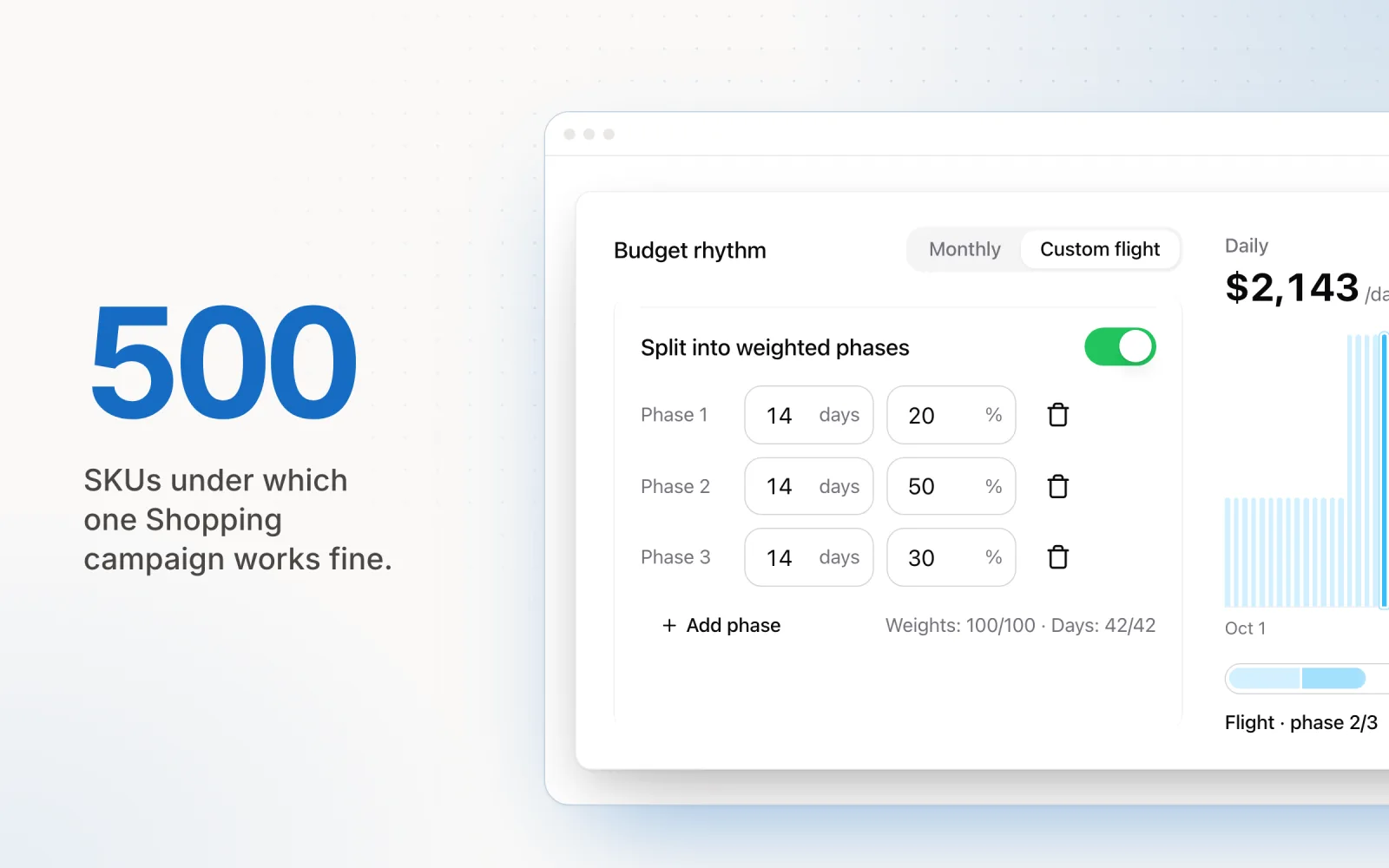
Pacing Shopping budgets. Shopping campaigns spend unevenly by nature. Spend concentrates on high-intent commercial queries, which move with demand patterns, competitor activity, and seasonal trends. A Shopping campaign might burn 40% of its weekly budget on Monday and Tuesday when purchase intent is high, then taper toward the weekend. That unevenness is fine on its own. It only becomes a problem when it causes you to exhaust monthly budgets early or underspend week after week. Monitor spend daily, review the trend weekly, and adjust budgets proactively when spend pulls more than 10% off target. For agencies running Shopping alongside Search, Meta, and LinkedIn, the only way to keep total client spend on track is to see every channel in one place.
That is exactly what Pace does. It paces Shopping budgets alongside Search, Meta, and LinkedIn from one dashboard, with daily automated adjustments that keep every channel on target without spreadsheet work. If managing Shopping budgets across clients is eating more time than it should, start a free trial.
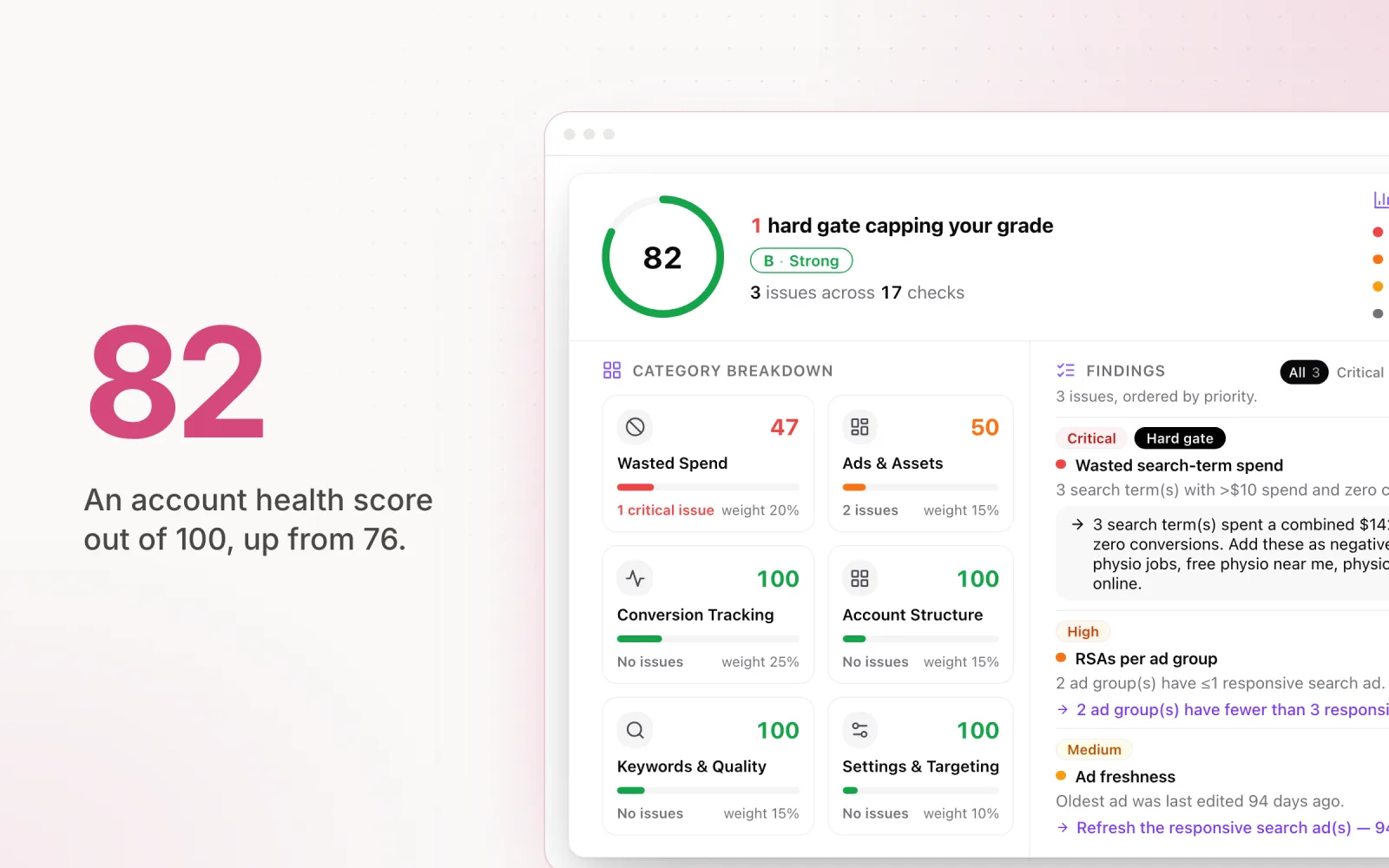
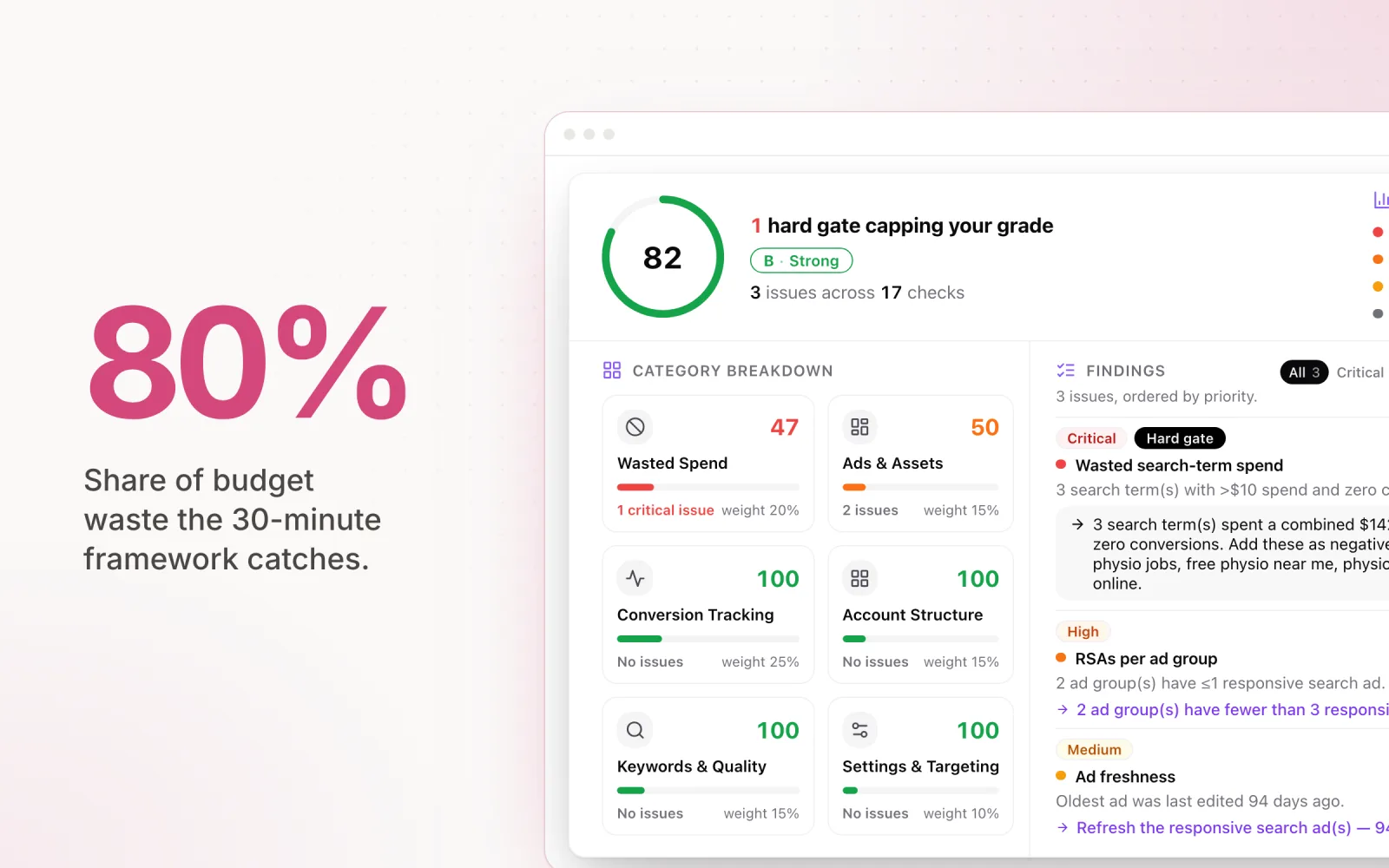
For a practical framework on assessing Shopping campaign health alongside other channels, our ad account audit guide includes Shopping-specific checks you can run in under 30 minutes.

Jordan Parrello
Founder of Pace. Ran an agency pacing sheet by hand for years before building the thing that checks it every 5 minutes. About Pace or LinkedIn